Creating a Poster by Enlarging and Copying the Original onto Multiple Sheets of Paper
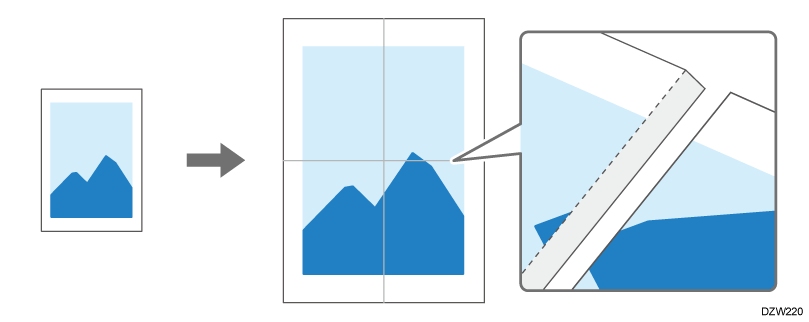
You can create a copy as large as a poster by bonding multiple sheets on which enlarged images are copied (Poster).
Bond them with an overlap of 15 mm (0.59 inch) on the margin of each sheet.

-
You cannot specify [Poster] together with the following functions:
-
When making duplex copies
-
When [Auto Density] is selected
-
-
If you specify [Poster], you cannot scan originals using the ADF.
-
Press [Copy] on the Home screen.
-
Select [Full Color] or [Black & White] on the Copy screen.
-
Press [Poster].
If the key is not displayed, select it from [2 Sided/Combine]. -
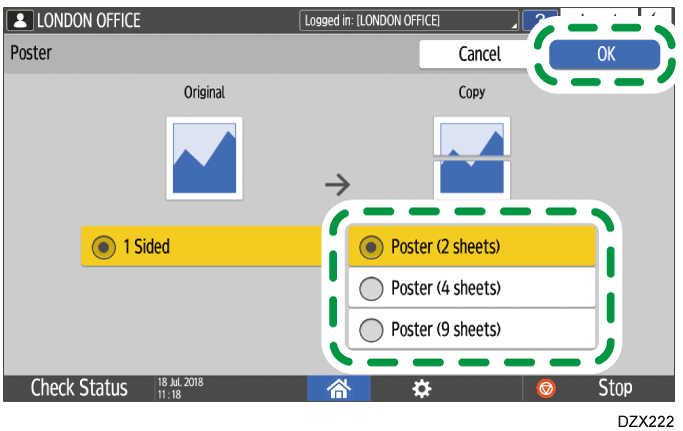
Specify the number of sheets of paper to use in one poster, and then press [OK].
-
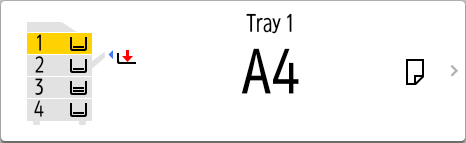
Press the paper tray select key and select the paper to use.
-
Place the original on the exposure glass, and then specify [Original Orientation].
Basic Procedure for Copying Documents -
Press [Start].