




 Previous
You can select the type of paper from the master library and register it as a custom paper.
The selectable paper types are as follows: Plain, Yellow, Green, Blue, Ivory, Orange, Pink, Red, Gray, Letterhead, Label Paper, Translucent Paper, Prepunched Paper, Transparency, Envelope, Coated: High Gloss, Coated: Matte, Coated: Glossy, Textured Paper, Metallic/Pearl Paper, Clear File Folder, Synthetic Paper.
 Press the [Paper Setting] key.
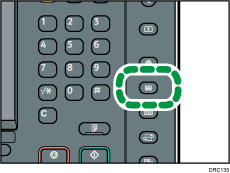
 Press [Edit Custom Paper].
 Press [Import from Master Library].
 Select the most appropriate combination of type and weight for your paper.
The list of paper types appears on the first and following pages in the master library.
Press [ Previous] or [
 Next] to scroll through the list to find the paper that you want to select.
 Press [Program to Custom Paper].
 Press [Yes].
 Press [Exit] twice.
 Press the [Paper Setting] key.

You can check and change the settings of the registered custom paper such as the paper size setting on the [Edit Custom Paper] screen. For details about modifying the custom paper, see Modifying a Custom Paper.


