




 Previous
 Display the [Tray Paper Settings] screen.
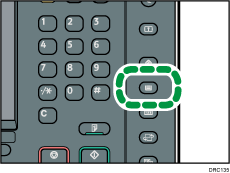
When using the standard operation panel
Press the [Paper Setting] key.
When using the Smart Operation Panel
Press [Home] (
 ) at the bottom of the screen in the center.
Press the [User Tools] icon (
 ) on the [Home] screen.
Press [Tray Paper Settings].
 Press [Edit Custom Paper].
 Press [Import from Master Library].
 Select the name of the paper that you want to register.
Press [ Previous] or [
 Next] to scroll through the list to find the paper that you want to select.
You can select two or more types of paper.
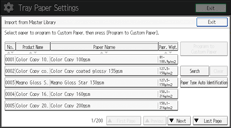
 Press [Program to Custom Paper].
 Press [Yes].
 Press [Exit] twice.
 Close the [Tray Paper Settings] screen.
When using the standard operation panel
Press the [Paper Setting] key.
When using the Smart Operation Panel
Press [User Tools] (
 ) on the top right of the screen.

You can check and change the settings of the registered custom paper such as the paper size setting on the [Edit Custom Paper] screen. For details about modifying the custom paper, see Modifying a Custom Paper.


