




 Previous
If you load a paper size that is not selected automatically, specify the paper size using the control panel.
 Display the Tray Paper Settings screen.
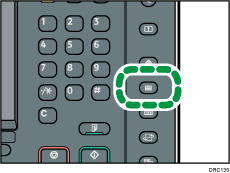
When using the standard operation panel
Press the [Paper Setting] key.
When using the Smart Operation Panel
Press [Home] (
 ) at the bottom of the screen in the center.
Press the [User Tools] (
 ) icon on the [Home] screen.
Press [Tray Paper Settings].
 Select the tray for which you want to change the paper size.
 Press [Manual Paper Settings].
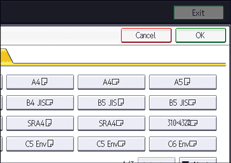
 Press [Paper Size] tab.
 Select the loaded paper size, and then press [OK].
 Close the Tray Paper Settings screen.
When using the standard operation panel
Press the [Paper Setting] key.
When using the Smart Operation Panel
Press [User Tools] (
 ) on the top right of the screen.
Press [Home] (
) at the bottom of the screen in the center.

For details about paper sizes selected automatically, see Recommended Paper Sizes and Types.
If you want to print on paper that is selected automatically after printing on a paper size that is not selected automatically, you must return the setting to [Auto Detect]. Reload the paper, and select [Auto Detect] in Step 5.


