




 Previous
The machine has a web browser that allows you to view Web pages.
You must first configure the network settings in [Screen Features]. For details about the settings, see "Screen Features", Connecting the Machine/ System Settings.
To open the web browser, press the [Web Browser] icon.
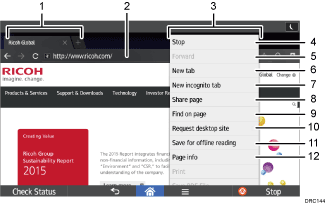
Tab
Press to switch screens. To display the URL bar, press the tab of the Web page.
URL bar
Press this bar to enter the URL of a Web page. You can type the URL of a Web page that you want to display by pressing the address bar.
Menu
Press [Menu] (
 ) at the bottom of the screen in the center to open this menu.
[Refresh]/[Stop]
Press to refresh a Web page.
While a Web page is refreshing, [Stop] appears.
[Forward]
Press to return to the previous Web page after pressing [Return] (
 ) at the bottom of the screen in the center.
[New tab]
Press to open a new tab.
[New incognito tab]
Press to open a new tab that leaves no record in the browser history or search history.
[Share page]
Press to share Web pages with other devices.
[Find on page]
Press to type a word and search for it on the current Web page.
[Request desktop site]
Press to switch the Web page display mode from the mobile version to the desktop version.
[Save for offline reading]
Press to save the Web page for offline reading.
[Page info]
Press to display the URL or server certificate of the Web page that you are accessing.
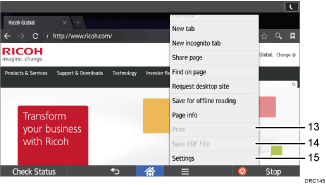
[Print]
Press to specify the printing conditions such as paper sizes and duplex printing. For details, see Printing a Web Page.
[Save PDF File]
Press to save the PDF file displayed on the browser. You can save the file to an SD card. For detail, see Saving PDF files downloaded from Web pages.
[Settings]
Press to specify security settings and other browser settings. For details, see Browser Settings.

For precautions on accessing external servers using the Web Browser, see Checking the security of the browser function.


