


 Previous
If a misfeed happens, remove the jammed paper by following the procedures stated in the animation that appears on the screen and the sticker or sheet inside the front cover.
There is a section in the machine where the indicator is flashing. If you pull out the unit to remove the jammed paper while the indicator is still flashing, the paper may be ripped or pieces of torn paper may be left inside the machine.
When the indicator is flashing, open the guide board of the corresponding section to remove the jammed paper or turn the knob to move the paper along the feed path. Confirm that the indicator has stopped flashing, and then pull out the unit.
When flashing, indicators shows the following:
A2–A3: Paper is left in the source tray and around the guide board.
B1–B2: Paper is left somewhere between A and the drawer unit or between the LCT and the drawer unit.
D1: Paper is left between the drawer unit and the post-processing unit.
E: Paper is left in the turnover section.
C1, C2: The unit can be pulled out by moving the lever as indicated by the arrow.
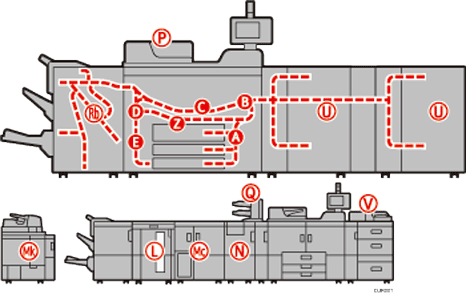
A misfeed has occurred in the place corresponding to the letter displayed on the screen.
 Remove the jammed paper by following the procedures that appears on the screen.
Make sure to remove any paper that is visible.
When [Next] or [Previous] is displayed on the screen.
After each step is complete, press [Next]. To go back to the previous step, press [Previous].
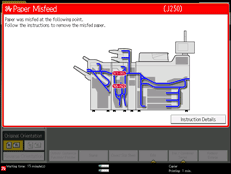
 When all jammed paper is removed, restore the machine to the original state.

More than one misfeed may be indicated. When this happens, check all the areas indicated.
If there is no misfed paper in the first area you check, see the other areas that are indicated.
When paper cannot be transferred to the post-processing side by turning the knob D1 as instructed on the screen, see the position of the letter in the figure and turn the knob D1 in reverse direction (clockwise) to send the paper back to the drawer unit, and then remove the paper.
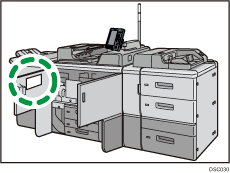
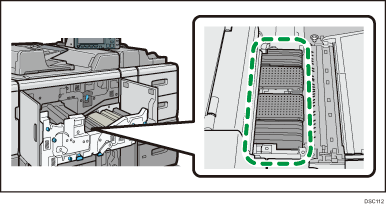
After C is displayed and the drawer unit is pulled out to remove the jammed paper, check that there is no toner searing on the location indicated in the figure. If toner smear is left, wipe off the toner with a clean and dry cloth.