




 Previous
Configure the distributed scan management (DSM) system on the Windows Server.
For the procedure to configure DSM, see Windows Server Help.
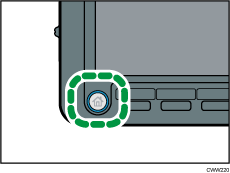
 Press the [Home] key on the lower left of the control panel, and press the [Scanner] icon on the [Home] screen.
 Login to the machine using Windows authentication.
 Make sure that no previous settings remain.
If a previous setting remains, press the [Reset] key.
 Press [DSM Destination].
 Place originals.
 If necessary, specify the scan settings according to the original to be scanned.
To change the scan settings, select the [Allow value override at scanner] check box when configuring the device on the Windows Server.
 Specify the destination.
 Press the [Start] key.

Distributed scan management is supported under the following Windows operating systems for servers: Windows Server 2008 R2 or later.
Up to 100 destinations can be displayed in [DSM Destination]. If more than 100 scan processes (destinations) are registered to Windows Server, information for the 100 processes that have been registered recently will be displayed in [DSM Destination].
Register the destination to the Windows Server.
The program function cannot be used with DSM.


