




 Previous
You can organize documents stored in the Document Server in folders.
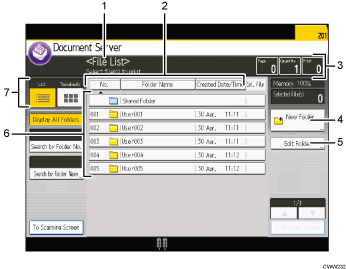
You can view a list of the documents in a folder by touching the folder key.
Folder list screen
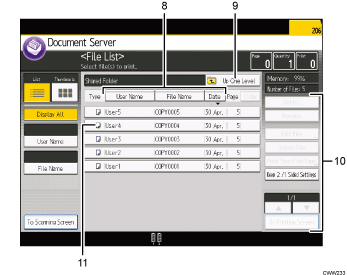
File list screen
Operational status and messages
Displays operational status and messages.
[No.], [Folder Name], and [Created Date/Time]
Press the item to sort the folders. Select the same item once more for a reverse sort.
Page, Quantity, and Print
Displays the number of originals stored in memory, number of sets to be printed, and prints made.
[New Folder]
Press to create a new folder.
[Edit Folder]
Press to change the folder name or password, or to delete the folder.
Folder keys
Press to display the list of stored files in the folder. If a password has been specified for a folder, a lock icon (
 ) appears to the left of the folder name.
List and Thumbnails
Displays keys for switching the display between list and thumbnails.
[User Name], [File Name], and [Date]
Press the item to sort the files. Select the same item once more for a reverse sort.
[Up One Level]
Press to display the list of folders.
Operation keys
Press to operate stored files.
If the file you want to select is not displayed in the list, press [
 ] or [
 ] to scroll the screen.
Icons
Displays an icon that indicates the function used to store the document. If a password has been specified for a file, a lock icon (
) appears to the left of the user name for the file.
The following icons appear in the list of the Document Server to indicate the function used to store a document:
Function |
Icon |
|---|---|
Copier |
|
Printer |
|


[Thumbnail] screen
In thumbnail view, reduced versions of the stored documents are displayed. This is useful for checking a document's content on the file list screen.
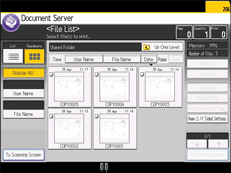

Some stored documents may not be displayed, depending on the security settings.
For details about how to check the files stored using the scanner function, see [Select Stored File] screen under the scanner function.


