


 Previous
You can switch the three screens described in this section by flicking the screen up or down.
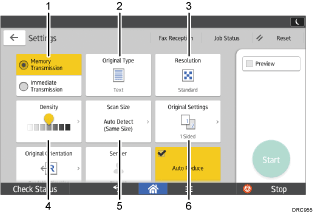
No. | Icon | Description |
|---|---|---|
1 |
| You can switch to immediate transmission mode. Unless immediate transmission is selected, memory transmission mode is selected by default. |
2 |
| You can select an original type that is suitable for your originals. |
3 |
| Press to select the resolution according to the size of the text on your original. |
4 |
| Press to specify the density to scan the original. You can also specify the density by touching the |
5 |
| Press to select the scanning size of the original. |
6 |
| Press to select the sides of the original. |



 icon and dragging it right or left.

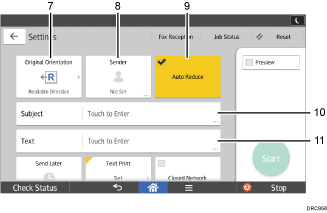
No. | Icon | Description |
|---|---|---|
7 |
| Press to select the orientation of the original. |
8 |
| Press to specify the sender. |
9 |
| Page Separation and Length Reduction. |
10 |
| Specify the Internet Fax/E-Mail subject. |
11 |
| Specify the Internet Fax/E-Mail Text. |



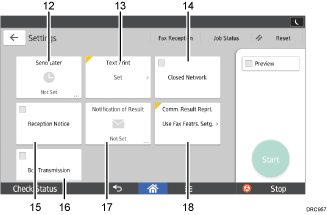
No. | Icon | Description |
|---|---|---|
12 |
| You can specify settings to automatically send files directly or via F-code confidential communication at a specified time. |
13 |
| You can select a standard message to be printed. |
14 |
| You can send files over a closed network. |
15 |
| Requesting Reception Confirmation. |
16 |
| Specifying Internet Fax/E-Mail Destinations as BCC Addresses. |
17 |
| You can receive a transmission notification by e-mail. |
18 |
| Once memory transmission is complete, you can have the result printed. |