




 Previous
Specify the login user name and password to be used for "User Authentication Management" in the Address Book.
For the characters that can be used for login user names and passwords, see Usable characters for user names and passwords.

 Log in as the user administrator from Web Image Monitor.
 Point to [Device Management], and then click [Address Book].
 Select the user you want to specify.
 Click [Detail Input], and then click [Change].
 Enter the "Login User Name" in the "Authentication Info at Login" area in the "Authentication Information" area.
 Click [Change] for "Login Password".
 Enter the login password in [New Password].
 Re-enter the login password in [Confirm Password], and then click [OK].
 Click [OK].
 Log out.

Log in as the user administrator from the control panel.
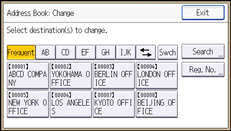
Select the user whose login user name and password you want to set.
[Address Book Mangmnt]
|

Specify the login user name.
[Auth. Info] |
For details, see "Ethernet Configuration", Operating Instructions.
Specify the login password.
[Change] |
Complete the setting.
[OK] |
Log out.

This can also be specified via Web Image Monitor. For details, see the procedure for SP C340DN.


