




 Previous

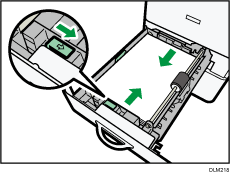
Slide the side fences until they are aligned with the sides of the paper. If there is space between the side fences and the paper, it may cause the image to be misaligned.
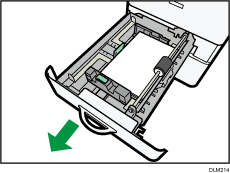
 Check that paper in the paper tray is not being used, and then pull the tray carefully out until it stops.
 Pull out the end fence.
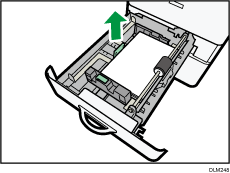
 Remove paper if loaded.
 While pressing down the release lever on the side fence, slide the side fences outward.
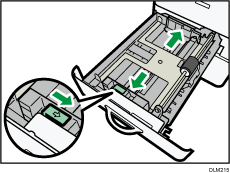
 Insert the end fence in alignment with the paper size.
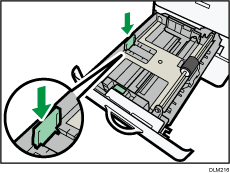
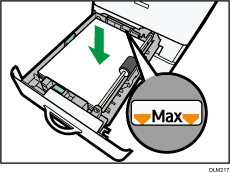
 Square the paper and load it print side up.
Do not stack paper over the limit mark.
 Align the side fences gently against the paper you loaded.
Make sure that there is no space between the paper and the side fences.
 Carefully slide the paper tray fully in.


