




 Previous
You can specify the scan area manually. Specifying the scan area manually can be useful for cropping excess border space around an image.
Scan size settings are as follows:
Auto Detect
Scans original sizes using the automatic size detect function.
If the machine cannot detect the original size, a confirmation message appears. Place the original again.
Regular
The placed original is scanned according to specified standard size regardless of actual size.
The sizes that can be specified are A3 , A4
, A4 , B4 JIS, 11 × 17, 81/2 × 14, 81/2 × 132/5, 81/2 × 11.

A3
, A4, B4 JIS, 11 × 17, 81/2 × 14, 81/2 × 132/5, and 81/2 × 11 paper cannot be scanned using the exposure glass. Load the original in the ADF.
Area
Only the area in the specified size is scanned regardless of the actual size of a placed original.
Two sizes can be registered in advance. You must first register the sizes of the originals that you want to scan in [Program / Change / Delete Scan Size] on the Fax Features menu. See Program / Change / Delete Scan Size.
 When Using the Fax Application
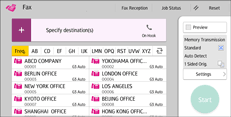
About how to use the application's screen, see "[Fax] Screen", Getting Started.
 When Using the Fax (Classic) Application
For details about how to use the classic fax function, see Procedure for scan size (classic).


