




 Previous
If you apply this mode, you can place originals of different sizes together in the ADF. The machine will automatically detect the size of each original and copy it accordingly.

When placing originals of different sizes in the ADF and making copies without using the Mixed Sizes mode, paper might become jammed or parts of the original image might not be copied.
 Press [Original Settings].
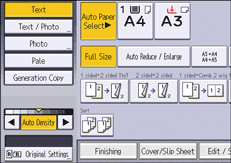
 Press [Mixed Sizes], and then press [OK].
 Adjust the original guide to the widest original size.
 Place originals in the ADF.
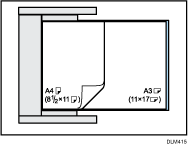
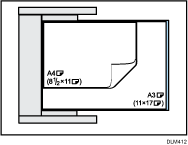
You can only load different-sized originals together in the ADF if they have the same width. For example, you can load A3 , 11 × 17 and A4
 , 81/2 × 11 paper together, but you cannot A3, 11 × 17 and A4, 81/2 × 11 paper.
Can load different-sized originals together like this.
Cannot load different-sized originals together like this.
 Press [Start].

Printing speed and scanning speed will be reduced.
When using this function with 1 Sided
 2 Sided mode, always ensure that the originals of each size are in even numbers. If you have an odd number of originals, insert blank sheets to adjust the total.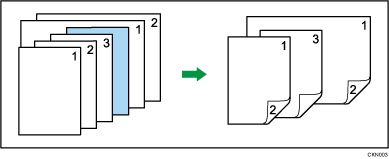
For details about the sizes and weights of paper that can be used in the Mixed Sizes mode, see "Recommended Original Sizes and Weights", Paper Specifications and Adding Paper.


