


 Previous
When you press the [Home] key just after the machine is turned on, the [Top] screen is displayed.
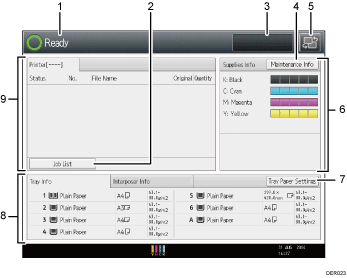
Using the [Top] screen, you can check the job list, toner status, and paper status.
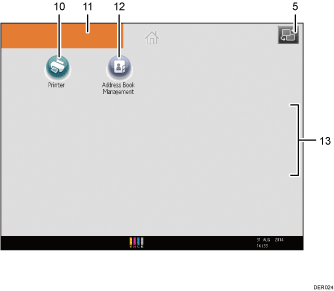
The icons of each function are displayed on the [Home] screen.
To display the [Home] screen, press the [Home] key. If the [Home] screen does not appear, press the  icon at the upper right corner of the screen to switch to the menu screen.
[Top] screen
[Home] screen
Operational status and messages
Displays operational status and messages.
[Job List]
Press to display the [Job List] tab on the [Printer] screen.
Estimated time
Indicated by the time estimated to complete the job at the top of the currently displayed job list.
[Maintenance Info]
Press to display the [Maintnc./Inquiry/Mach. Info] tab on the [Check Status] screen.
Switch screens
Press to switch between the [Home] screen and the [Top] screen.
[Supplies Info]
Displays the information about supplies, such as the remaining amount of toner.
[Tray Paper Settings]
Press to display the [Tray Paper Settings] screen.
[Tray Info]/[Interposer Info]
Displays the status of the paper trays and the interposer.
[Job List]
Displays current and pending jobs.
[Printer]

Press to make settings for using the machine as a printer.
For details about how to make settings for the printer function, see Print.
Home screen image
You can display an image on the [Home] screen, such as a corporate logo. To change the image, see Displaying an Image on the [Home] Screen.
[Address Book Management]

Press to display the Address Book.
For details about how to use the Address Book, see "Address Book", Connecting the Machine/ System Settings.
 /
/
Press to switch pages when the icons are not displayed on 1 page.

When an embedded software application is installed, a function icon for the application is displayed on the [Home] screen.
You can change the order of icons. For details, see Changing the Order of Icons on the [Home] Screen.
On the simple screen, up to 8 icons are displayed on each page. Letters and keys are displayed in a larger size, making operations easier. On the standard screen, up to 16 icons are displayed on each page. For details, see Switching Screen Patterns.


