


 Previous
You can change the brightness of the display
 Press the [Menu] key/
 if Contact List screen is displayed. If the Menu screen is displayed, proceed to step 2.
 Press the [
 ] or [
 ] key to select [Machine Configuration], and then press the [Enter] key/
 .
.
 Press the [] or [] key to select a setting item from "Brightness:", and then press the [Enter] key/.
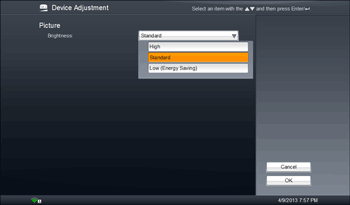
 Press the [] or [] key to select [High], [Standard], or [Low (Energy Saving)], and then press the [Enter] key/.
 Press the [
 ] key to select [OK], and then press the [Enter] key/.
The settings for this mode are saved and loaded the next time you start the machine. If you use the machine in a different environment change the settings for this mode.

This feature cannot be changed while a video output device is connected. Change the brightness from the video output device. For details about how to change the brightness of the video output device, see the manual provided with the video output device.
When you connect a video output device and then turn on the machine, the "Brightness:" setting will change to [Standard], which is the default setting. If you do not connect a video output device the next time you use the machine, change the "Brightness:" setting as needed.
If you disconnect the video output device before you turn off the machine, check the "Brightness:" setting and change it if needed.


