




Basic Operation for Scan to E-mail/FTP/Folder
This section describes the basic operation for sending scanned files via e-mail, to an FTP server, or to a computer, depending on the specified destination.

When using the Scan to E-mail, Scan to FTP or Scan to Folder function, you must first register the destination in the address book. For details about registering destinations, see Address Book
 .
.When using the Scan to E-mail, you must specify the name of the sender. For details, see Specifying the E-mail Sender
.
 Press the [Scanner] key.
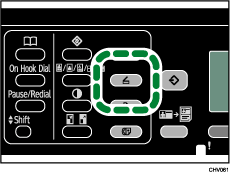
Confirm that “Set original, specify dest.” is shown on the screen.
 Place the original on the exposure glass or in the ADF.
For details about placing originals, see Placing Originals.
 Press the [Address Book] key.
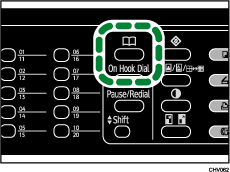
 Search for the desired destination by pressing the [
 ] or [
 ] key to scroll the address book, and then press the [OK] key.
For details about specifying the scan destination, see Specifying the scan destination.
 Press the [B&W Start] or [Color Start] key.
To scan in color, set [Original Type] to [Full Color: Text/Photo] in [Options].
To scan in black and white, set [Original Type] to anything except [Full Color: Text/Photo] in [Options].
To cancel scanning, press the [Clear/Stop] key.
When using the exposure glass, place the next original on the exposure glass, and then press the [B&W Start] or [Color Start] key. Repeat this step until all originals are scanned.
When all originals have been scanned, press [#] to start sending the scanned file.

For details about specifying the scan settings, see Specifying the Scan Settings
.

