


 Previous

Select the items that will be applied to the paper for the various settings. If the paper to be used and the settings are different, a paper jam may result.
If the [Paper Color] setting is not specified correctly, paper may jam or an image may be printed in the wrong position.
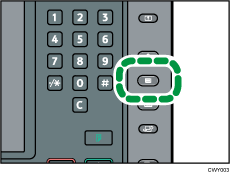
 Press the [Paper Setting] key.
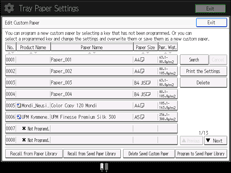
 Press [Edit Custom Paper].
 Select a number that is [
 Not Programd.].
Press [ Previous] or [
 Next] to scroll through the list.
 Press [Change] for [Paper Name].
 Enter the name of the paper, and then press [OK].
 Press [Change] for [Paper Size].
 Select a paper size, and then press [OK].
 Press [Change] for [Paper Weight].
 Specify the paper's weight, and then press [OK].
Press [Change] if you changed the paper weight.
 Press [Change] for [Paper Type].
 Specify the paper type, and then press [OK].
Press [Change] if you changed the paper type.
 Specify [Coated Paper Type], [Paper Color], [Prepunched or Not], [Apply Duplex], and [Apply Auto Paper Select] according to the paper's features.
If you change the [Coated Paper Type], [Paper Color], or [Prepunched or Not] and press [OK], a message appears to notify you that the [Advanced Settings] will be initialized. To apply the changes for those settings, select [Change]. To cancel the changes, select [Do not Change].
 Press [OK].
 Press [Exit].
 Press the [Paper Setting] key.
You can also close the [Tray Paper Settings] screen by pressing [Exit].

If you want to use glossy paper, select [Glossy] for [Coated Paper Type]. If you want to use matte paper (including silk, dull, and satin paper), select [Matted] for [Coated Paper Type].
If you use color paper that does not appear as keys, select an appropriate setting depending on the color density of the paper from the following:
Plain Paper: White paper
Color Paper 1: Light-colored paper
Color Paper 2: Dark-colored paper
For details about custom paper settings, see Custom Paper Settings.
For details about [Advanced Settings], contact your machine administrator.


