


 Previous
Use the [Preview] screen to check that originals have been scanned correctly.
This section explains about the [Preview] screen that can be used before sending files by e-mail or Scan to Folder, the DSM scanner, or delivering files.
Before you start scanning, press [Preview]. If you scan originals while [Preview] is selected, the [Preview] screen appears.
You can start or cancel sending the files after checking the preview and the scan settings used for scanning.
[Preview] screen
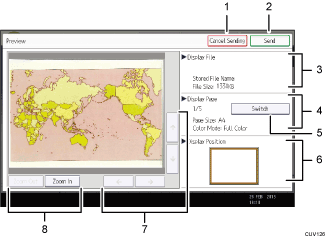
[Cancel Sending]
Press to close a preview and interrupt a transmission.
[Send]
Press to close a preview and continue a transmission.
Display File
Displays a file's name and size.
Display Page
Displays the number of the currently displayed page, total number of pages, page size, and color mode.
[Switch]
Press to change the page of the selected file that is displayed.
Display Position
Displays the position of an image when enlarged.
[
 ][
][ ][
][ ][
][ ]
]Press to shift the displayed area.
[Zoom Out] and [Zoom In]
Press to reduce or enlarge the displayed preview.

Preview is not available if you are scanning by WSD. View the scanned images on the destination computer instead.
Preview is not available if a file is scanned using [Store to HDD]. You can view a stored file using the [Preview] screen displayed from the list of stored files. For details about viewing a stored file, see "Checking a Stored File Selected from the List", Scan.
Preview is not available if you select [High Compression PDF] as the file type.
Preview might not be displayed if scanning failed or the image file is corrupted. If this is the case, scan the original again.


