


 Previous

When printing is completed, the stored file will be deleted.
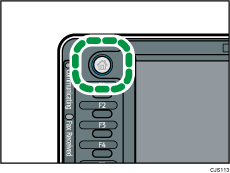
 Press the [Home] key on the top left of the control panel, and press the [Printer] icon on the [Home] screen.
 Press the [Print Jobs] tab.
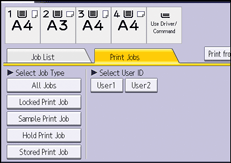
 Press [Hold Print Job].
 Select the files you want to print.
You can select all the Hold Print files at once by pressing [Select All Jobs] after selecting a file.
 Press [Print].
 To change the print settings of the document, press [Detailed Settings].
For details about the settings that can be configured, see Settings that Can Be Configured on the Control Panel .
.
 Enter the number of copies using the number keys if necessary, and then press [Print].

If printing of a Hold Print file is scheduled at a certain time and you want to print the file before the time specified, print the document using the control panel.
To stop printing after printing has started, press [Exit] until the printer screen appears, and then press [Job Reset] or the [Stop] key. The file will be deleted.
You can also print a Hold Print file from Web Image Monitor. For details, see Web Image Monitor Help.


