




Head Position
Adjusts the print head. Perform this operation if printed lines are vertically misaligned or printed colors are blurred.
To check adjustment values, print test patterns applying "High Speed", "Standard", "High Quality", "Envelope Print" settings.
If there are several lines in the test pattern, check adjustment values for each line, and adjust the print head positions. If the adjustment value is set to "0", adjustment is not necessary. Adjust all lines so their adjustment values indicate "0".
 Press the [
 /Menu] key.
 Press the [
 ] or [/Menu] key to display [Maintenance], and then press the [#Enter] key.
| Menu: Maintenance |
 Press the [] or [/Menu] key to display [Head Position], and then press the [#Enter] key.
| Maintenance: Head Position |
 Press the [] or [/Menu] key to display [Pr.Test Pattern], and then press the [#Enter] key.
| Head Position: Pr.Test Pattern |
 Press the [] or [/Menu] key to select the target's resolutions, and then press the [# Enter] key.
| Pr.Test Pattern: High Speed |
A test pattern to adjust print head positions is printed.
 To check the adjustment value, select the square whose printed colors are faintest (closest to white). Alternatively, select the square whose internal lines overlap to form a single color.
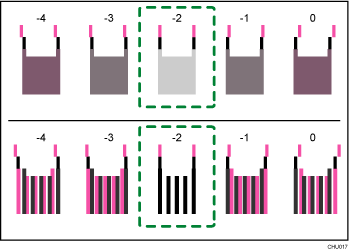
Combined two-color lines form squares, and depending on line overlapping, (white) spaces between the lines are painted and look darker. Sometimes the colors of the lines are identical.
For this illustration, the adjustment value is "-2". Checking adjustment values for each item is required.
If you cannot specify the adjustment value, select the square whose vertical lines are straight.
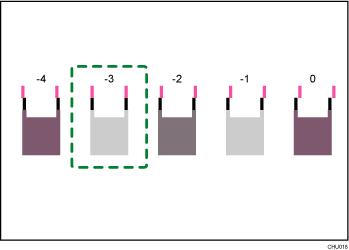
A vertical line of a square consists of two overlapping lines, so if the print head is not positioned properly, the line looks misaligned.
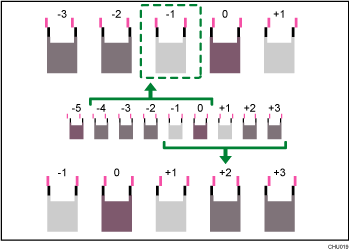
If you still cannot specify the adjustment value, identify two vertical lines that are on the left and right sides of the square and whose adjustment values are ±1 or ±2. After this, identify two lines that are symmetrically located on the left and right sides of a square. To specify an adjustment value, select this square.
This illustration indicates an adjustment value that is set to "-1".
 Press the [] or [/Menu] key to display [Adjustment], and then press the [#Enter] key.
| Head Position: Adjustment |
 Press the [] or [/Menu] key to select a resolution from Step 5, and then press the [#Enter] key.
| Adjustment: High Speed |
 Select the items that you need to adjust, and then press the [# Enter] key.
| Adjustment: 1.A |
 Enter the optimal adjustment values from Step 6, and then press the [#Enter] key.
| A: (-4, +4) 0 |
 Press the [Escape] key.

