




Installing the Printer Drivers for a USB Connection
This section explains how to install only the printer driver when the machine is connected to a computer via USB.
If you installed the printer driver by performing Quick Install for USB, there is no need to install it again here.

Only administrators can perform this installation. Log on as a member of the Administrators group.
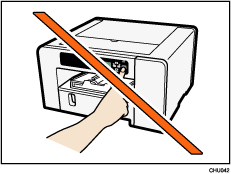
Do not turn the machine on until you have read how to do so.
 Insert the CD-ROM in the CD-ROM drive.
Quit all other applications currently running.
If the "Add New Hardware Wizard" appears, click [Cancel], and then turn the machine off.
When you insert the CD-ROM, the installer launches. Auto Run might not work automatically with certain OS settings. If this is the case, double-click "SETUP.EXE", located on the CD-ROM root directory, or click [Run SETUP.EXE] in the [AutoPlay] dialog box.
If the screen does not appear even when you double-click the [SETUP.EXE] icon, or if an error occurs during the installation, access the CD-ROM drive from [My Computer] or [Explorer]. Double-click the [RP_SETUPXX.EXE] icon, and then install the printer driver by following the instructions that appear on the screen.
 Select a language for the interface, and then click [OK].
 Click [PCL/RPCS Raster Printer Drivers] or [Printer Driver].
 Read the entire license agreement carefully. If you accept its terms, click [I accept the agreement.], and then click [Next >].
 Click [Add a new printer], and then click [Next >].
 Click [Connect USB cable], and then click [Next >].
 Select the machine model you want to use, and then click [Next >].
 Check that the power of the machine is off, and then click [Next >].
Although the Windows security warning may appear during installation, ignore it and continue with the installation.
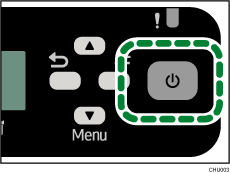
 Make sure that the computer and machine are properly connected, and then press the [Power] key.
Installation starts.
 Click [Yes] to specify the machine as the default printer.
 Select whether or not to open the Status Monitor automatically, and then click [Next >].
 If you want to make initial settings for the printer, click [Set Now].
 Make initial settings, and then click [OK].
 Click [Finish].
If a dialog box asking whether you want to restart now appears, select [Yes, restart now.], and then click [Finish].

For details about sharing the printer, see Sharing the Printer
 .
.Confirm the printer driver is correctly installed by checking the [Power] key is lit, and then performing a test print. To perform a test print, open the [Printer Properties] dialog box, click [Print Test Page] on the [General] tab. If the test page does not print properly, see If Test Print Fails
.If Windows Firewall is installed on the print server, configure exceptions in the firewall before using Status Monitor. For details about configuring the Windows Firewall settings, see Status Monitor Errors
.

For details about installing the User Guide only, see Installing and Opening the User Guide
.

