




 Manuals
 Contents
 Previous
 Next
Next


| | | |
| |||
| |||
| | | |
| ManualsContentsPreviousNext | | |

Ethernet and Wireless LAN cannot be used at the same time.
To use Wireless LAN, set as follows using the control panel: press the [Menu] key, select [Host Interface], [Network], [LAN Type], and then select [Wireless LAN]. In addition, you must set the IP address, subnet mask, gateway address, DHCP, Frame Type (NW), and active protocol as explained in Ethernet Configuration.
The following table shows the control panel settings and their defaults. These items appear in the [Wireless LAN] under [Host Interface] menu.
Setting Name |
Default |
|---|---|
Communication Mode |
Infrastructure Mode |
SSID Setting |
blank |
Ad-hoc Channel |
11 |
Security Method |
Off |
Wireless LAN Signal |
- |
Restore Defaults |
- |
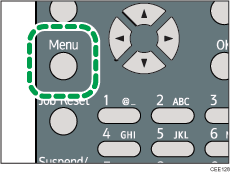
Press the [Menu] key.
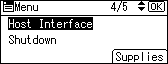
Press the [ ] or [
 ] key to select [Host Interface], and then press the [OK] key.
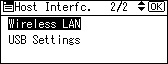
Press the [ ] or [ ] key to select [Wireless LAN], and then press the [OK] key.
Press the [ ] or [ ] key to select [Communication Mode], and then press the [OK] key.
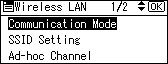
Press the [ ] or [ ] key to select the transmission mode of Wireless LAN, and then press the [OK] key.
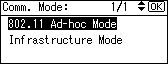
The transmission mode of the Wireless LAN can also be set using Web Image Monitor.
If [802.11 Ad-hoc Mode] is selected for [Communication Mode], confirm the channel to use for transmission.
Press the [ ] or [ ] key to select [Ad-hoc Channel], and then press the [OK] key.
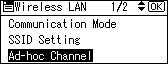
Press the scroll keys to select the Ad-hoc channel, and then press the [OK] key.
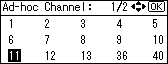
Select an Ad-hoc channel according to the IEEE 802.11 standard you are using.
When using IEEE 802.11 b/g:
 (mainly Europe and Asia)
Channels 1 to 13
 (mainly North America)
Channels 1 to 11
When using IEEE 802.11 a:
Channels 36,40,44,48
Press the [Menu] key to return to the initial screen.
Print a configuration page to confirm the settings.

For details, see Web Image Monitor Help, and "Using Web Image Monitor", Software Guide.
For details about printing the configuration page, see Test Printing.
 |
 | Copyright (C) 2010 |
