




Insert Sheet
You can insert a blank designation sheet before or after a specified page.
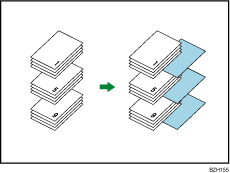

Before using this function, select the tray for slip sheets under Designation Sheet 1
 8 in Tray Paper Settings. For details, see “Changing Tray Paper Settings”, Paper Settings Reference.
 Press [Cover/ Slip Sheet].
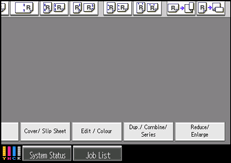
 Press [Designate / Chapter].
 Press [Insert Sheet].
 Press the key to select the chapter number.
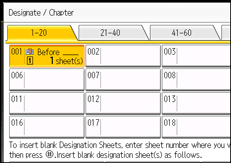
 Select the designation sheet tray that contains the paper for the designation sheets.
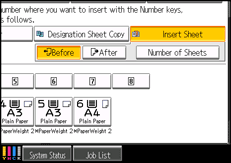
 Select [Before] to insert slip sheets before the desired page. Select [After] to insert slip sheets after the desired page. Enter the page number with the number keys.
 Press [Number of Sheets], and enter the number of sheets you want to insert with the number keys, and the press the [
 ] key.
 To specify another location where to insert sheets, repeat steps 4 to 7.
 Select the main sheet tray that contains the paper to copy the originals.
 After making all settings, press [OK] twice.

The designation sheets should be the same size and orientation as the main sheets.
To change the value you entered, press the key you want to change, and then enter a new value.

