


Edit
This section describes the user tools in the Edit menu under Copier / Document Server Features.
Enter the width of the binding margin with the number keys as follows:
0
 1.2 inches (in increments of 0.1 inches)
Enter the width of the erased margin with the number keys as follows:
0.1
3.9 inches (in increments of 0.1 inches)
An image of approximately 1.5 mm (0.06 inches) will not be displayed as the width of the separation line, when specifying solid or broken lines.
Front Margin: Left / Right
Specify left and right margins on the front side of copies in Margin Adjustment mode.
Default: [Left: 0.2 inch]
Back Margin: Left / Right
Specify left and right margins on the back side of copies in Margin Adjustment mode.
Default: [Right: 0.2 inch]
Front Margin: Top / Bottom
Specify top and bottom margins on the front side of copies in Margin Adjustment mode.
Default: [T / B: 0.0 inch]
Back Margin: Top / Bottom
Specify top and bottom margins on the back side of copies in Margin Adjustment mode.
Default: [T / B: 0.0 inch]
1 Sided  2 Sided Auto Margin: TtoT
In 1 sided 2 sided Duplex mode, you can specify the margins on the back side.
The margin is set to the same value of “Back Margin: Left / Right”.
Default: [Right: 0.2 inch]
1 Sided 2 Sided Auto Margin: TtoB
In 1 sided 2 sided Duplex mode, you can specify the margins on the back side.
The value set for “Back Margin: Top / Bottom” is used.
Default: [T / B: 0.0 inch]
Creep Setting for Magazine
Specify the creep binding margin width.
Default: [0.2 inch]
Erase Border Width
Specify the width for erasing border.
Default: [0.4 inch]
Erase Original Shadow in Combine
In Combine mode, you can specify whether to erase a 3 mm, 0.1 inches boundary margin around all four edges of each original.
Default: [On]
Erase Center Width
Specify the width of the erased center margins with this function.
Default: [0.4 inch]
Front Cover Copy in Combine
You can make a combined copy on the front cover sheet when you select Front Cover mode.
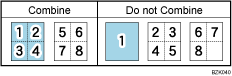
Default: [Combine]
Copy Order in Combine
You can set the copy order in Combine mode.
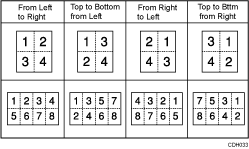
Default: [From Left to Right]
Orientation: Booklet, Magazine
Select the opening orientation of copies made using Booklet or Magazine mode.
Default: [Open to Left]
Image Repeat Separation Line
You can select a separation line using the Image Repeat function from: None, Solid, Broken A, Broken B, or Crop Marks.
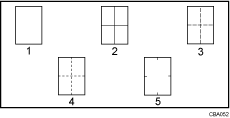
None
Solid
Broken A
Broken B
Crop Marks
Default for “Type of Separation Line”: [None]
In “Full Color”, you can also select the color of the separation line.
Default for “Color of Separation Line in Full Color”: [Black]
Separation line color cannot be specified when selecting [None].
In “Black & White”, printing will be done in black.
Selecting solid or broken lines might produce a blank area of approximately 1.5 mm (0.06 inches) in width along the separation line.
Double Copies Separation Line
You can select a separation line using the Double Copies function from: None, Solid, Broken A, Broken B, or Crop Marks.
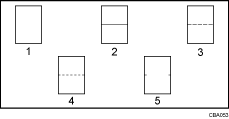
None
Solid
Broken A
Broken B
Crop Marks
Default for “Type of Separation Line”: [None]
In “Full Color”, you can also select the color of the separation line.
Default for “Color of Separation Line in Full Color”: [Black]
Separation line color cannot be specified when selecting [None].
In “Black & White”, printing will be done in black.
Selecting solid or broken lines might produce a blank area of approximately 1.5 mm (0.06 inches) in width along the separation line.
Separation Line in Combine
You can select a separation line using the Combine function from: None, Solid, Broken A, Broken B, or Crop Marks.
None
Solid
Broken A
Broken B
Crop Marks
Default for “Type of Separation Line”: [None]
In “Full Color”, you can also select the color of the separation line.
Default for “Color of Separation Line in Full Color”: [Black]
Separation line color cannot be specified when selecting [None].
In “Black & White”, printing will be done in black.
Selecting solid or broken lines might produce a blank area of approximately 1.5 mm (0.06 inches) in width along the separation line.
Copy on Designating Page in Combine
Specify whether to make a combined copy on the inserted slip sheets in Designate or Chapter mode.
Default: [Combine]
Copy Back Cover
When copying the back cover, you can specify whether to have the back cover outside (outside page) or inside (inside page).
Default: [Outside]
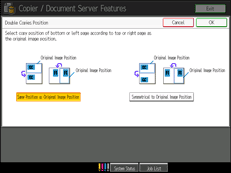
Double Copies Position
You can select the copy position of bottom or left page according to top or right page as the original image position.
Default: [Same Position as Original Image Position]