




Programming the LDAP server
This section describes how to program the LDAP server.
 Press the [User Tools] key.
 Press [System Settings].
 Press [Administrator Tools].
 Press [
 Next] twice.
 Press [Program / Change / Delete LDAP Server].
 Check that [Program / Change] is selected.
 Select the LDAP server you want to program or change.
When programming the server, select [*Not Programmed].
 Press [Change] under "Name".
 Enter the name, and then press [OK].
 Press [Change] under "Server Name".
 Enter the server name, and then press [OK].
 Press [Change] under "Search Base".
Select the root folder from which to start the search. Users registered in the selected folder and its subfolders become search targets.
 Enter the search base, and then press [OK].
For example, if the search target is the sales department of ABC company, enter "dc=sales department, o=ABC". (In this example, the description is for an active directory. "dc" is for the organization unit, and "o" is for the company.)
Search base registration may be required depending on your server environment. When registration is required, unspecified searches will result in error.
Check your server environment and enter any required specifications.
 Press [Change] under "Port Number".
Specify the port number for communicating with the LDAP server. Specify a port that is compliant with your environment.
 Enter the port number using the number keys, and then press the [
 ] key.
 Press [On] under "Use Secure Connection (SSL)".
Use SSL to communicate with the LDAP server.
To use SSL, the LDAP server must support SSL.
When SSL is set to [On], the port number automatically changes to "636".
SSL setting must be enabled on this machine. For details, consult your network administrator.
 Press [Next].
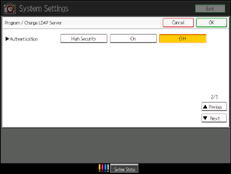
 Press [On] or [High Security] under "Authentication".
To make a search request to the LDAP server, use the administrator account for authentication.
Authentication settings must comply with your server's authentication settings. Check your server settings before setting this machine.
[High Security] is available only with LDAP Version 3.0.
When [High Security] is selected, the administrator password is encrypted before it is sent to the network. When [On] is selected, the password is sent without out encryption.
 Press [Next].
 Press [Change] under "Name".
You can enter an attribute as a typical search keyword. Using the entered attribute, the function searches the LDAP server's Address Book.
 Enter the name, and then press [OK].
 Press [OK].
 Press [Exit].
 Press the [User Tools] key.

