




General Features
This section describes the user tools in the General Features menu under System Settings.
Program / Change / Delete User Text
You can register text phrases you often use when specifying settings, such as ".com" and "Regards".
You can register up to 40 entries.
Program / Change
Press the [User Tools] key.
Press [System Settings].
Check that [General Features] is selected.
Press [Program / Change / Delete User Text].
Check that [Program / Change] is selected.
Select the user text you want to change.
To program new user text, press [*Not Programmed].
Enter the user text, and then press [OK].
Enter the user text using up to 80 characters.
Press [Exit].
Press the [User Tools] key.
Delete
Press the [User Tools] key.
Press [System Settings].
Check that [General Features] is selected.
Press [Program / Change / Delete User Text].
Press [Delete].
Select the user text you want to delete.
Press [Yes].
Press [Exit].
Press the [User Tools] key.
Panel Key Sound
The beeper (key tone) sounds when a key is pressed.
Default: [Medium]
Warm-up Beeper
You can have the beeper sound when the machine becomes ready to print after leaving Energy Saver mode, or when the power is turned on.
Default: [On]
If the Panel Key Sound setting is [Off], the beeper does not sound, whatever the Warm-up Beeper setting.
Function Priority
Specify the mode to be displayed immediately after the operation switch is turned on, or when System Reset mode is turned on.
Default: [Printer]
Status Indicator
You can specify whether the status indicator shows the machine status or not.
Default: [On]
Screen Color Setting
You can select the screen color among from five types.
Default: [Gray Type]
Output: Printer
Specify a tray to which document are delivered.
The available output trays and default settings vary depending on which options are installed. See "Selectable Output Trays".
Paper Tray Priority: Printer
Specify a tray to supply paper for output.
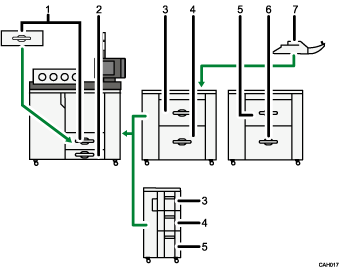
Tray 1
Tray 2
Tray 3
Tray 4
Tray 5
Tray 6
Tray 7
Default: [Tray 1].
System Status/Job List Display Time
Specify how long to display the System Status and Job List display for.
Default: [On], [15 second(s)]
By selecting [On], you can specify a display time between 10 and 999 seconds.
Key Repeat
You can enable or disable repetition of an operation if a key on the screen or control panel is pressed continuously.
Default: [Normal]
Z-fold Position
If you specify Z-folding, set the fold-back position in 1 mm (0.1 inch) increments.
The setting ranges of the folding position for each paper size are shown below:
A3: 2-25 mm (0.1-1.0 in.)
B4 JIS: 2-40 mm (0.1-1.6 in.)
A4: 2-10 mm (0.1-0.4 in.)
11 × 17: 2-20 mm (0.1-0.8 in.)
81/2 × 14: 2-35 mm (0.1-1.4 in.)
Default: [2 mm] (Metric version) / [0.1 inch] (Inch version).
This setting appears only when the Z-folding unit is installed.
Output Tray Setting
Use this setting to switch between [According to Function Setting] and [Auto Change].
Output Tray
This setting appears only when more than one stacker trays are attached to the machine.
According to Function Setting
Auto Change
Default: [According to Function Setting]
Multi-job Output Method to Stacker
This setting appears only when stacker tray is attached to the machine.
Stack Jobs
Do not Stack jobs
Default: [Stack Jobs]
Output Settings when Stacker is Full
This setting appears only when more than one stacker trays are attached to the machine.
Auto Detect
Priority Stacker
Default: [Auto Detect]
Perfect Binding Cut Fine Adjustment
Adjust the cut size applied when perfect binding.
This setting appears only when the perfect binder is installed.
Default for "Vertical": [0 inch]
Default for "Horizontal": [0 inch]
Default for "Cut Position": [0 inch]

For details on how to access System Settings, see "Accessing User Tools".


