




Changing Default Settings
This section describes how to change the settings of User Tools.

If Administrator Authentication Management is specified, contact your administrator.
 Press the [User Tools] key.
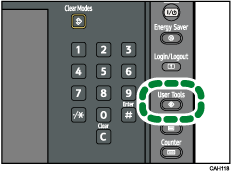
 Select the menu.
To change the System Settings, press [System Settings].
To adjust color registration, press [Maintenance].
To change the Adjustment Settings for Operators, press [Adjustment Settings for Operators].
To check the telephone number to contact for repairs, or to order consumables, press [Inquiry].
 Select the user tool you want to change.
 Change settings by following instructions on the display, and then press [OK].

To cancel changes made to settings and return to the initial display, press the [User Tools] key.
For details about specifying System Settings, see "System Settings".
For details about specifying other settings such as adjusting color registration, changing the language, checking inquiry and counter, see "Other User Tools".
For details about specifying Adjustment Settings for Operators, see "Adjustment Settings for Operators".


