




Loading Tab Stock
This section describes how to load tab stock into trays.

Set the tray for tab stock before using this function, and then set the position of the index tab under Paper Type in Tray Paper Settings.
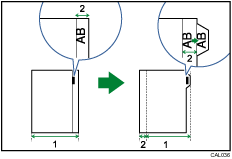
Original width
Index width
Specify the size of tab stock under Paper Size in Tray Paper Settings. The sizes that can be used are A4
 , 81/2" × 11", and 81/2" × 14"
 .
.Tab stock can be loaded into Tray 2, Tray 3 and 4 of LCT, Wide LCT, and multi bypass tray. When loading tab stock in the paper trays, always use the tab sheet holder on each tray. The tab sheet holder for Tray 2 is an optional unit.
Set tab stock so that the side with the tab is facing the back fence.
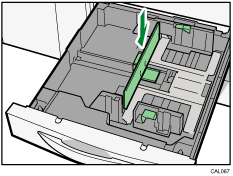
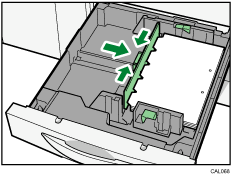
Tray 2
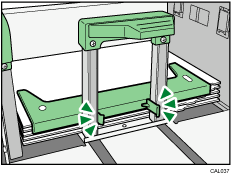
Adjust the end fence position so that the tab sheet holder will fit the tab stock.
LCT
Place the tab sheet holder on the loaded tab stock.
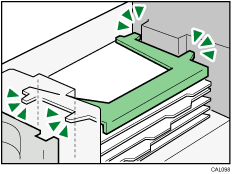
Wide LCT
Place the tab sheet holder on the loaded tab stock.
Multi Bypass Tray
Adjust the end fence position so that the tab sheet holder will fit the tab stock.
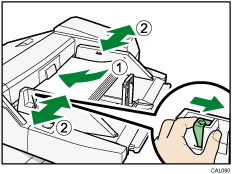
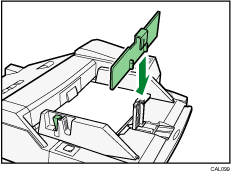

Check the position of the index tab to avoid cropping the image.
Align the image you want to print by checking the position of the index tab. If the image extends beyond the index tab, the backs of sheets may get soiled with toner.
Tab stock is fed starting from the top tab.
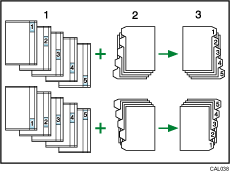
Originals
Tab Stock
Printed
When a paper jam has occurred, check the order of originals and tab stock, and then restart printing.

