




Removing Paper from the Stacker
This section describes how to remove prints and copies from the stacker.

Use the stacker cart for transporting paper from the stacker. Do not use the stacker cart for any other purpose.
Do not attempt to get inside the stacker.
 Press the Tray Lowering button.
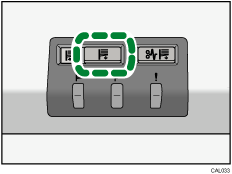
When the stacker tray is fully lowered, the Tray Moving Indicator stops flashing and remains lit.
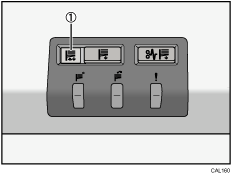
Tray Moving Indicator
 Open the stacker front cover.
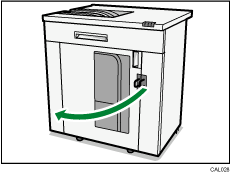
 Carefully pull out the stacker cart.
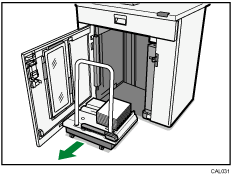
Take care not to let the paper stack topple.
 Rest the paper press on top of the paper stack.
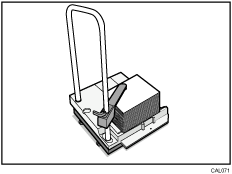
 Pull the lever on the paper press toward you.
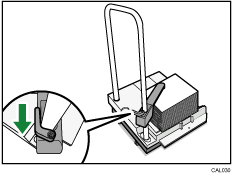
 Transport the paper to where it is required, and then unload the stacker cart.
 Return the paper press to its original position.
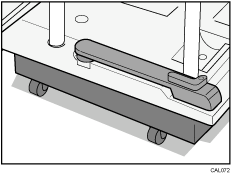
 Put the stacker cart back inside the stacker.
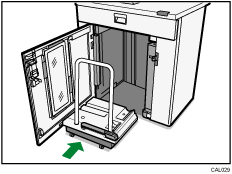
Be careful to push the stacker cart in straight, not at an angle.
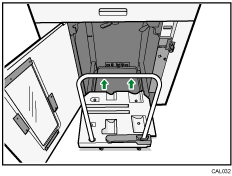
 Close the stacker front cover.
The stacker tray begins elevating automatically and the Tray Moving Indicator begins flashing. When the Tray Moving Indicator stops flashing, the tray is fully elevated.

Before moving the stacker, be sure to take the stacker cart out of the stacker.

