












 Manuals
 Contents
 Previous
 Next
Next


| | | |
| |||
| |||
| | | |
| ManualsContentsPreviousNext | | |
Each copy set can be stapled together.
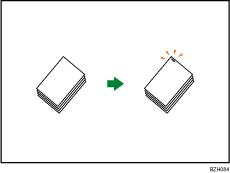

If you select staple without having the stapler cartridge for saddle stitch set in the booklet finisher, a paper misfeed might occur. Be sure to set the stapler cartridge.
Original orientation and stapling position
Place all the originals in the ADF in the orientation in which they can be read normally. When placing the original on the exposure glass, keep the same orientation, but set the original facing downwards.
The relationship between the orientation in which you place the original and the staple positions is as follows:
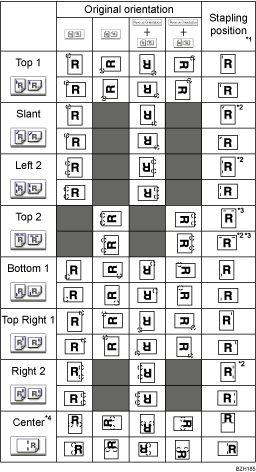
*1 The above table shows staple positioning. The orientation of the paper does not indicate orientation of delivery.
*2 You cannot staple at this position when copying onto the following paper sizes: A3, B4 JIS, 11 × 17, 81/2 × 14, 8 × 13, 81/2 × 13, 81/4 × 13
*3 If you want to staple at this position, select unreadable orientation in Original Orientation and then select Top 2.
*4 If Booklet Finisher SR5020 is installed, you can select Center as the staple position.
Press [Output/ Customize Function/ Finisher].
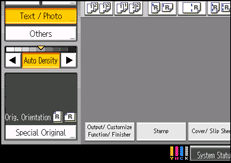
Press [Finisher].
Select the staple position.
When you select a stapling position, Sort is automatically selected.
Press [OK].
Enter the number of copies with the number keys.
Place the originals, and then press the [Start] key.

For details about which sizes and weights of paper that can be stapled, see "Specifications for Finisher SR5000" or "Specifications for Booklet Finisher SR5020", About This Machine.
When the number of copies exceeds tray capacity, copying stops. If this happens, remove copies from the tray to resume copying. For details about the number of copy sheets that the output tray can accommodate, see "Specifications for Finisher SR5000" or "Specifications for Booklet Finisher SR5020", About This Machine.
When placing an original on the exposure glass, start with the first page to be copied. When placing originals in the ADF, set so that the first page is on the top.
When placing originals on the exposure glass, or in the ADF using Batch mode, press the [ ] key after all the originals have been scanned.
If you specify Staple: Center, you must specify the Magazine function. For details about Magazine, see "Booklet/Magazine".
You can change the staple positions shown on the initial display under Input / Output in User Tools. You can also register staple positions on the [Finisher] tab. To select a staple position not displayed on the initial display, you need to specify one of these settings. For details, see "Copier/Document Server Features", General Settings Guide.
 |
 | Copyright (C) 2010 |

