












 Manuals
 Contents
 Previous
 Next
Next


| | | |
| |||
| |||
| | | |
| ManualsContentsPreviousNext | | |
This section describes the User Tools in the Reproduction Ratio menu under Copier / Document Server Features.
User Reduce/Enlarge Ratio
You can register up to three frequently used reduce/enlarge ratios other than the fixed reduce/enlarge ratio and have them shown on the display. You can also change registered reduce/enlarge ratios.
When you select [User Reduce/Enlarge Ratio], the ratio can be set from 25.0 to 400.0%, using the number keys.
Default for “F1”: [70.7%]
Default for “F2”: [141.4%]
Default for “F3”: [200.0%]
Reproduction Ratio
Specify the enlargement and reduction ratios that appear if [Reduce / Enlarge] is pressed on the copier screen.
When you select [User Reduce/Enlarge Ratio], the ratio can be set from 25.0 to 400.0%, using the number keys.
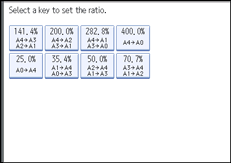
25.0% (A0  A4)
A4)
35.4% (A1 A4, A0 A3)
50.0% (A2 A4, A1 A3)
70.7% (A3 A4, A1 A2)
141.4% (A4 A3, A2 A1)
200.0% (A4 A2, A3 A1)
282.8% (A4 A1, A3 A0)
400.0% (A4 A0)
User Reduce/Enlarge Ratio
Reduce/Enlarge Ratio Priority
You can set the ratio that has priority when [Reduce / Enlarge] is pressed.
Default: [70.7%]
User Auto Reduce / Enlarge: A0-A4, B1 JIS-B4 JIS
Define a user auto reduce/enlarge ratio for each document size when copying with the User Auto Reduce / Enlarge function.
[Off] determines whether to display a defined user auto reduce/enlarge ratio on a copier screen.
Select one of the following paper sizes for a user auto reduce/enlarge ratio defined for each document size:
A0
A1
A2
A3
A4
B1 JIS
B2 JIS
B3 JIS
B4 JIS
Off
You cannot change the size of the page image on an A-series original to fit B-series copy paper or vice versa.
 |
 | Copyright (C) 2010 |
