




Head-cleaning
Follow the procedure below to perform a normal print head cleaning. Perform a head cleaning when a particular color cannot be printed or print images are blurred. Head cleaning consumes ink.
When the Print cartridge is empty, replace it instead of performing a print head cleaning. After a Print cartridge is replaced, a print head cleaning will be automatically performed.

Do not turn off the machine during print head cleaning. If the machine is turned off during print head cleaning, start again from the beginning.
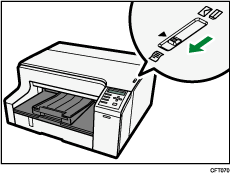
 Slide the envelope selector
  to the forward position.
 Press the [Menu] key.
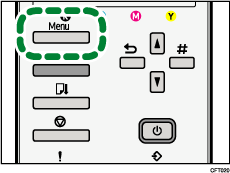
 Press the [
 ] or [
 ] key to display [Maintenance], and then press the [#Enter] key.
| Menu: Maintenance |
 Press the [] or [] key to display [Head-cleaning], and then press the [#Enter] key.
| Maintenance: Head-cleaning |
 Press the [] or [] key to select a color, and then press the [#Enter] key.
| Head-cleaning: All Heads |
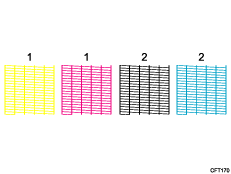
1. Head 1 (Yellow/Magenta)
2. Head 2 (Black/Cyan)
 Press the [#Enter] key.
| Press # to clean heads |
Head cleaning starts.
| Maintenance in process... |
 Press the [Online] key.
The initial screen appears.


