




Specifying Settings on the Control Panel
Make the following network settings according to the network interface you are using.
If you have connected the printer to a network, make the required network environment settings.
The following table shows the control panel settings and their default values. These items appear in the [Network Setup] menu.
Setting Name |
Value |
|---|---|
1.DHCP |
On |
2.IP Address |
GX e3300N/GX e7700N: 11.22.33.44 GX e3350N: 0.0.0.0 |
3.Subnet Mask |
0.0.0.0 |
4.Gateway Address |
0.0.0.0 |
5.Active Protocol |
TCP/IP: Active |
6.Ethernet Speed |
Auto Select |
7. Restore Default (GX e3300N/GX e7700N) |
None |
The following example explains making settings for TCP/IP.
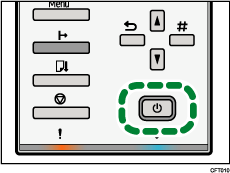
 Press the [Power] key.
 Press the [Menu] key.
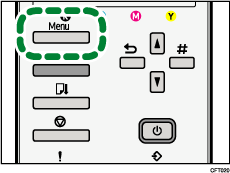
The Menu screen appears on the display.
 Press the [
 ] or [
 ] key to display the [Host Interface] menu, and then press the [#Enter] key.
| Menu: Host Interface |
 Press the [] or [] key to display [Network Setup], and then press the [#Enter] key.
| Host Interface: Network Setup |
 Press the [] or [] key to select [IP Address], and then press [#Enter] key.
| Network Setup IP Address |
The current IP address appears on the display.
 Press the [] or [] key to enter the left most entry field of the IP address, and then press the [#Enter] key.
IP Address:  . 0. 0. 0 . 0. 0. 0 |
To get an IP address for the printer, contact your network administrator.
The value moves by 10 if the [] or [] key is kept pressed.
When the [#Enter] key is pressed, the cursor moves to the next field.
 Press the [#Enter] key.
As the specified value is entered in each field, the cursor moves to the next field.
| IP Address: 192. . 0. 0 |
 Repeating the steps, specify values in all fields, and then press the [#Enter] key.
To return to the previous field, press the [Escape] key.
 Specify "Subnet Mask" and "Gateway Address" in the same way as when specifying the IP address.
 After you have made all the settings, press the [Online] key.
The specified settings are set and the initial printer screen reappears.
You can print the configuration page to confirm the specified settings.

For details about how to print a configuration page, see Printing a Configuration Page
 .
.

