




Collate
Use the following procedure to divide documents containing multiple pages into individual sets for easy separation.
Collate Types
Collate
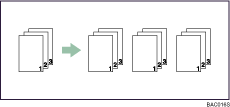
Printed output is assembled as sets in sequential order.
Job Separation
The optional finisher or optional booklet finisher is required for this function.
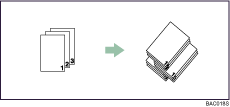
The finisher shift tray moves backward or forward when a job or set is output, causing the next to shift, so you can separate them.
 Open the document that you want to print.
 Select [Print] on the [File] menu.
 Select [Copies & Pages] in the pop-up menu, and then clear the [Collate] check box.
 Select [Group3] in the [Features Sets:] pop-up menu.
 Select the [Collate] check box.
 Print the document using the print function in the document’s native application.

If the application has its own collate function, disable it. This will allow the printer to apply its own collate function.
If the destination output tray supports the shift function, output sheets will be shift-collated.

