




Menu Protect
This section lists the items that are protected by the Menu Protect function.
By enabling Menu Protect, you can limit access to certain settings and functions. You must enter the password for printer settings to enable this function.
When you enable Menu Protect, the following settings and functions are available only to users who have the Menu Protect password:
Settings/Functions on the normal screen
Program Tray Paper Settings
Recall / Change Tray Paper Settings
Print Check Sample
Paper Colour Settings
Functions under Printer Features
Basic Configuration
(Viewing the current settings is possible without entering the Menu Protect password.)

To prevent general users from changing the protected menus settings or functions using the Menu Protect function, be sure to set the password for printer settings. If you set “0” as the password for printer settings, the Menu Protect function becomes ineffective and the menus will not be protected.
Use the following procedure to enable Menu Protect.
 Press the [User Tools] key.
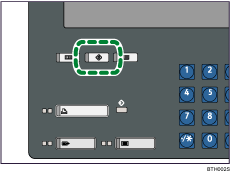
 Press [Printer Features].
 Press [Administrator Configuration].
 Press [Printer Settings].
 If the screen for entering password appears, enter the password for printer settings, and then press [OK].
 Press [Menu Protect].
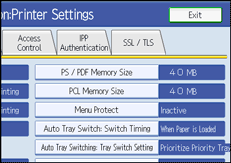
 Press [Active], and then press [OK].
 Press [Exit] to return to the [Printer Features] screen.
 Press the [User Tools] key to return to the normal screen.

