




Changing the Paper Color Name
Use the following procedure to program and use the paper color function.
Using this function, you can specify a name for the color of the paper loaded in the source paper tray. If you register a name for the paper color, that name will be displayed on the control panel with the other paper tray information.
You can select a color name from one of the seven preset names or specify a custom color name.
If the printer settings are password-protected and Menu Protect is enabled, you must enter the password for printer settings to configure these settings.
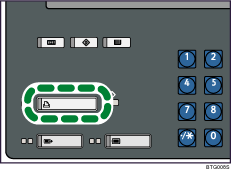
 Press the [Printer] key to display the normal screen.
 Press [Paper Colour Settings].
 If a message prompting you to enter a password appears, enter the password for printer settings, and then press [OK].
 Select the tray containing the paper whose color name you want to register.
 Select a name for the color from [Colour 1] to [Colour 80].
If the color name you require is not displayed, press [ Previous] or [
 Next] to scroll through the list.
 Press [Change Colour Name].
 Enter the name for the color, and then press [OK].
 Press [OK].
The screen returns to the initial display.

Custom color names can contain up to 14 characters.
For details about entering characters, see “Entering Text”, About This Machine.

