




Folding positions
The following table shows the folds that this printer can apply to prints.
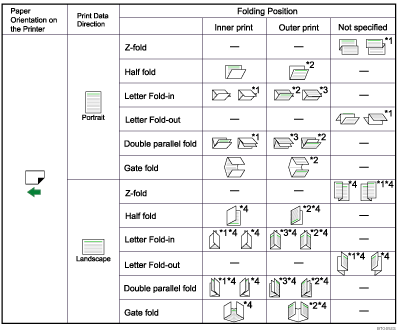
*1 To have prints delivered in this format, you must select [Rotate by 180 degrees] and specify the appropriate fold pattern.
*2 To have prints delivered in this format, you must select [Eject Face-up] and specify the appropriate fold pattern.
*3 To have prints delivered in this format, you must select both [Rotate by 180 degrees] and [Eject Face-up] and specify the appropriate fold pattern.
*4 If you are printing using the command instead of the printer driver, be sure to specify the appropriate setting for rotating the document by 180 degrees with the PJL command.

Gate-fold and multi-sheet fold cannot be applied to coated paper.
With some applications, the fold direction of the output might be the opposite of the specified direction when landscape is selected for the Print data direction.
If two or more paper sizes are specified for the document, the format of the Z-fold might differ from that shown in the table.
For details about which sizes and types of paper are compatible with which fold or multifold, see "Appendix", About This Machine.
Paper will not be output to a paper folding tray unless paper folding is specified. If a paper folding tray is specified as the output tray, but paper folding is not specified, it will be output to the finisher shift tray.

