Read This First
In this manual, “Embedded Software Remote Manager”
applies the word to “Remote Manager”.

§
When using a
client user's PC, the client may be worried about information leaks or data
corruption so care must be taken to reduce such fears. Before performing
operations, it may be best to ask the client to sign a memorandum of
understanding (such as a Non-disclosure agreement or a waiver of liability).
§
If the
service representative is using their PC or a USB device to attach a client's
PC, care should be taken to not introduce a virus or other malware into the
client's network.

§
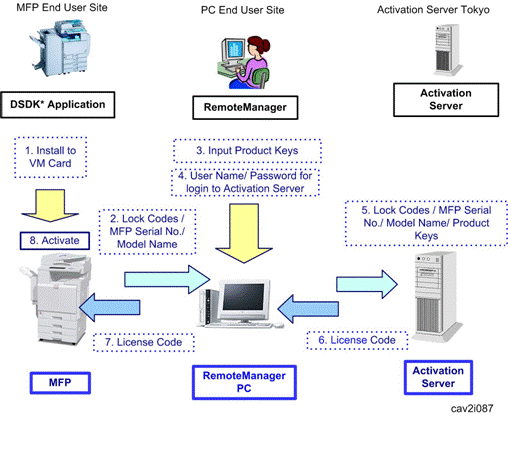
DSDK*: A DSDK (Device Software
Development Kit) application is an application developed using the Ricoh Device
SDK, based on Java technology.
Installation Procedure
Remote Manager is a tool for activation and
installation of DSDK applications.
This tool contains the following features.
§
Remote installation and
uninstallation of DSDK (Type J) applications
§
Remote update of DSDK (Type J)
applications
§
Activation of DSDK (Type J/
Type C) applications
§
Deactivation of DSDK (Type J)
applications
§
Windows 2000 SP4, Windows XP
SP2 (Windows Vista is not supported)
§
Windows 2000 Server SP4
§
Windows Server 2003 SP2
This tool can communicate to the network with
the following protocols and port numbers.
Communication with Activation Server
|
Protocol
|
Port
numbers
|
|
HTTPS
|
443
|
Communication with devices
|
Protocol
|
Port
numbers
|
|
SNMP-V1
|
161, 162
|
|
HTTP
|
8080
|
|
HTTP / HTTPS
|
80/ 443 *Note
|
|
Ricoh Discovery Protocol
|
51003, 51004, 51005
|
*Note: 80: When not using SSL/ 443: When using
SSL
1.
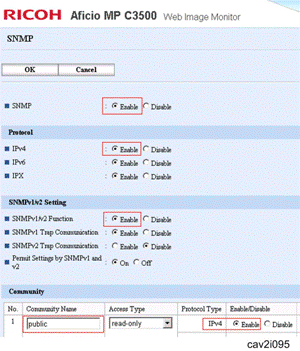
Make sure that SNMP-V1 is
enabled. (Enable the red squared areas in the screen capture above)
2.
If the Community Name has been
changed from the default value (public), then open the ClientActivator.ini file
included in the Remote Manager ZIP file and change the Community Name as
follows:
§
If the customer's Community
Name is foo, the ClientActivator.ini needs to look like:
[MFD]
Community=foo
|
Important!
|
|
If the above settings are not correct, the
following situation will occur:
§
Remote Manager will not be
able to gather the serial number and PnP Name (model name) from the device.
|
|
§
If the device gets damaged,
replaced, or discarded, you will be UNABLE
to de-activate the product license, as the Activation Server administrator
requires the device serial number to forcibly de-activate the license. This
will make the product key affected to the license unusable.
To avoid this
situation, please ask the customer to keep a copy of the device’s serial
number and the Work state archive should be created as a part of normal
Remote Manager operation, as is shown at step 6 in page p.30 "Storing
a License in a Target Machine".
|
SNMP V1, HTTP and network connection must be
required to do this installation procedure.
§
SNMP V1 must be enabled in
target machine(s). For details about how to enable the "SNMP V1", see
p.5 "Environmental
Requirement".
§
Remote Manager (zipped)
§
DSDK application(s) (zipped)
§
CSV Template stored in
"template" folder located in the "Remote Manager (zipped)"
§
This CSV template is used for
importing the CSV file when registering multiple devices in the Remote Manager.
|
Confirmation Points
|
|
§
Confirm the installation
possibility of multiple DSDK applications to a machine for your supervisor or
a remote support person.
§
Prepare the Product Key(s)
for DSDK application(s).
§
Check and note an IP
address(es) or host name(s) for a machine(s) which a DSDK application(s) is
supposed to be installed in.
§
Check and note authentication
information (user name and password of an administrator) of a machine(s)
which a DSDK application(s) is supposed to be installed in.
§
Check if the VM card (Java
VM) is installed in a target machine and the firmware of the VM card is a
latest version. If not, install the VM card in a target machine and update
the firmware to the latest one.
§
For updating the firmware of
the VM card by using an SD card reader and writer, refer to RTB.
§
Check if the firmware (e.g.
system module) of a target machine is the latest version.
|
|
Cautions about Volume License
|
|
§
In case a customer has
purchased a volume license, ask the customer to manage the number of the
available DSDK application's licenses by making a list of the available DSDK
application's licenses. Remote Manager (Work state archive file) cannot
manage the number of the available DSDK application's licenses depending on
installation circumstances and how many machines a DSDK application is
installed in.
|
|
Preparing for installation/activation (* p.8)
|
|

|
1.
VM card installation into the
device
2.
Confirm the following points.
§
Product key registration in
the Activation Server by user.
§
Product key for activation
§
Check the
device status using "Update device information" icon at each
step.Work state archive file has to be saved at each step.
|
|
Launching Remote Manager (* p.16)
|
|
|
[DSDK
Application Installation]
|
|

|
1.
Add a device (MFP) on the
device list.
|
|

|
1.
Update device information
(check the status on the device list).
|
|

|
1.
Add an application on the
Remote Manager.
2.
Select target device on
device list
|
|

|
1.
Install an application into
the device (select target application in the window).
2.
Login to the appeared
authentication menu using administrator's user name and password of the Web Image
Monitor.
|
|
|
1.
Update device information
(check the status on the device list). Installed application name should be
in the application drop-down window.
|
|
|
|
|
Activation (* p.27)
|
|
Preparing for activation (* p.8)
|
|
|
1.
VM card installation into the
device
2.
Application installation into
the device
3.
Confirm the following points.
§
Product key registration in
the Activation Server by user.
§
Product key for activation
|
|
Launching Remote Manager (* p.16)
|
|
|
[Activation - 1st Phase] (* p.27)
(To
get the device information)
|
|
-
|
1.
Add a device (MFP) on the
device list. (If the device is on the list, it can be skipped.)
|
|
-
|
1.
Select the target device on
the device list and select an application in the window.
|
|
|
1.
Update the device
information. (To get the device information.)
|
|
|
|
|
Internet connection available at a customer place?
|

|
|
|
NO
|
|
YES
|
1.
Save a Work state archive,
and then change a location to get access to the internet connection.
2.
Get a product license and
save a Work File, and then go to a customer place again.
|
|
|

|
|

|
[Activation – 2nd Phase] (* p.28)
(To
get a license code from the Activation Server.)
|
|

|
1.
Add a product key in the
Remote Manager.
|
|

|
1.
Get a license code from the
Activation Server.
|
|
|
[Activation – 3rd Phase] (* p.30)
(To
store license code into the device.)
|
|

|
1.
Store the license code into
the target device.
|
|
|
1.
Update device information.
(To get the device information.)
|
|
|
1.
Save the device status data
as a Work state archive file, and then ask the customer to keep this.
|
|
Completed
|
|
Launching Remote Manager (* p.16)
|
|
|
1.
Open the Work state archive
file which is already saved before.
|
|
Internet connection available at a customer place?
|
|
|
|
NO
|
|
YES
|
|
|
[Deactivating Product] (* p.32)
|
[Deactivating Product] (* p.32)
§
Deactivate License (Remove
License from MFP).
|
|
1.
Remove the license
information from the device at the customer place.
§
By checking ON the check box
of "Connect to Activation Server" in the "Deactivate
License" screen, "Login" to the "Activation Server"
screen appears.
2.
Return the product license to
the "Activation Server".
|
1.
Remove the license
information from the device at the customer place.
§
Check OFF the check box of
"Connect to Activation Server" in the "Deactivate
License" screen.
2.
Save a file as a Work state
archive.
3.
Uninstalling DSDK
application.
|
|
-
|
[Changing a location to get access to the internet
connection] (* p.32)
§
Return License (To Activation
Server).
|
|
|
1.
Open the Work file, and then
"Deactivate" with the Remote Manager.
§
Return the product license to
the "Activation Server".
2.
Save a Work state archive.
|
|
Uninstalling DSDK application
(* p.34)
|
|
|
|
|
Completed
|
SNMP V1, HTTP and network connection must be
required to do this installation procedure.
§
SNMP V1 must be enabled in
target machine(s). For details about how to enable the "SNMP V1", see
p.5 "Environmental
Requirement".
§
Remote Manager (zipped)
§
DSDK application(s) (zipped)
§
CSV Template stored in
"template" folder located in the "Remote Manager (zipped)"
§
This CSV template is used for
importing the CSV file when registering multiple devices in the Remote Manager.
|
Confirmation Points
|
|
§
Confirm the installation
possibility of multiple DSDK applications to a machine for your super visor
or a remote support person.
§
Prepare the Product Key(s)
for DSDK application(s).
§
Check and note an IP
address(es) or host name(s) for a machine(s) which a DSDK application(s) is
supposed to be installed in.
§
Check and note authentication
information (user name and password of an administrator) of a machine(s)
which a DSDK application(s) is supposed to be installed in.
§
Check if the VM card (Java
VM) is installed in a target machine and the firmware of the VM card is a
latest version. If not, install the VM card in a target machine and update
the firmware to the latest one.
§
For updating the firmware of
the VM card by using an SD card reader and writer, refer to RTB.
§
Check if the firmware (e.g.
system module) of a target machine is the latest version.
|
|
Cautions about Volume License
|
|
§
In case a customer has
purchased a volume license, ask the customer to manage the number of the
available DSDK application's licenses by making a list of the available DSDK
application's licenses. Remote Manager (Work state archive file) cannot
manage the number of the available DSDK application's licenses depending on
installation circumstances and how many machines a DSDK application is
installed in.
|
§
You must install a compatible
VM card in the machine(s) before you launch the "Remote Manager" from
an external media such as a USB memory (no installation required in a PC).
§
Installation must be done from
a PC with a network connection to a target machine with the VM Card installed.
1.
Extract the "Remote
Manager" zip file to an appropriate folder.
2.
Execute the "Remote Manager"
utility by running (double-clicking) the
"EmbeddedSoftwareRemoteManager.exe" file.
3.
The main menu screen of the
"Remote Manager" appears.
§
This application can be
launched directly from an external media such as a USB memory (no installation
required in a PC).
§
"Embedded Software Remote
Manager Operation Guide" is automatically displayed by default after
running the "Remote Manager". It is possible to turn off the display
of "Embedded Software Remote Manager Operation Guide". For details,
see the "About Help Menu" described below.
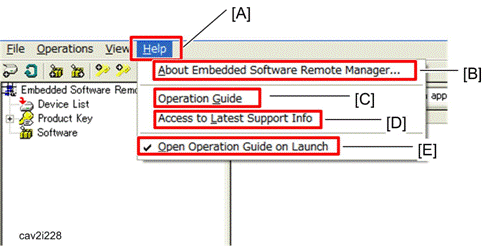
§
[A] "Help": To open
the help menu.
§
[B] "About Embedded
Software Remote Manager...": To show the version of the "Remote
Manager".
§
[C] "Operation
Guide": To open the operation guide.
§
[D] "Access to Latest Support
Info": To view and download the latest operation guide, video guide, FAQ
and etc.
§
[E] "Open Operation Guide
on Launch": To turn on or off the Operation Guide display on launching
with a check mark. (Default: ON)
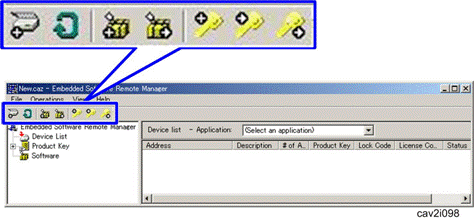
There are seven icons at the upper-left on the
toolbar of the Remote Manager. These icons provide easy and quick ways of the
installation and activation for the DSDK application. Each icon's function is
described in the icon list below;
|
Icon
|
Description
|
|
|
Adds a device (MFP) on the device list.
|
|
|
Updates device information (checks the status
on the device list).
|
|
|
Adds a DSDK application on the Remote
Manager.
|
|
|
Installs a DSDK application into the target
device (selects the target application in the window).
|
|

|
Adds a product key in the Remote Manager.
|
|
|
Gets a license code from the Activation
Server.
|
|

|
Stores the license code into the target
device.
|
The status icons shown at the first column in
the device list indicate current status of the target machines.
|
Icon
|
Description
|
|
None
|
Application is not installed.
|
|

|
No information is available.
|
|

|
Application is installed.
|
|

|
Application is installed and license is
obtained from the Activation Server.
|
|

|
Application is installed and license is
stored in the target machine.
|
|

|
Error Status
|
|

|
License is removed from a machine, but is not
returned to the activation server yet.
|
1.
Open the "Remote
Manager".
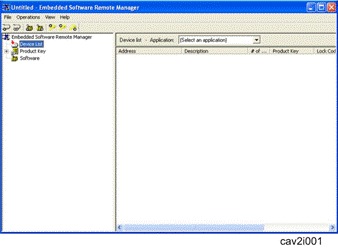
2.
The main menu screen of the
"Remote Manager" appears.
§
Make sure that the PC running
the "Remote Manager" must be able to connect to the target machine
via network.
§
Check the status of the target
machine(s).
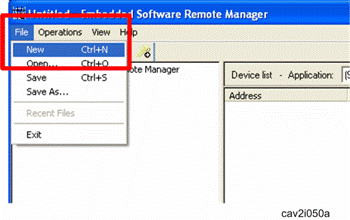
§
If a previous setting still
appears on the screen, open the "File" and select "New" to
refresh the screen.
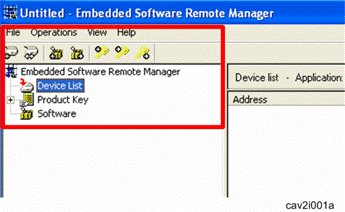
3.
Click the "Device
List" icon on the left window to ensure you are working on a Device List
(it is highlighted).
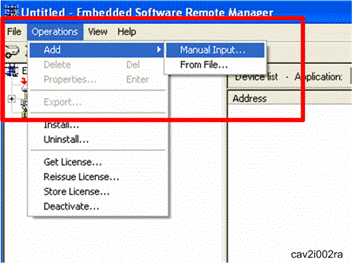
4.
Open the "Operation"
menu item and click the "Add" > "Manual Input…".
§
You can register machines with
"From File." at this point. For details, see the p.48 "Add
From File" in the Appendix section.
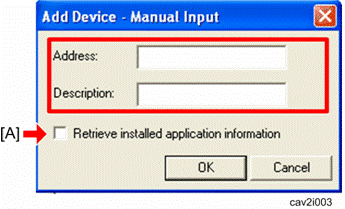
5.
Enter the IP address or host
name of the target machine and give a display name to the target machine
(Description). For segment numbers less than 100, do not include a “0” before
the number, as an error will occur.
§
You can register multiple
machines to the "Device List" with this manual input.
§
The description in the
"Add Device - Manual Input" screen will be shown in the "Device
List" window of this utility.
6.
Check the check box [A], and
then click the "OK" button.
§
You can get information of
registered machines from the property menu once you have registered the target
machines with the check box [A] filled.
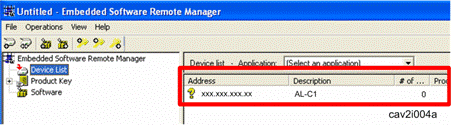
7.
The IP address or host name and
description of the target machine appear in the "Device List" window.
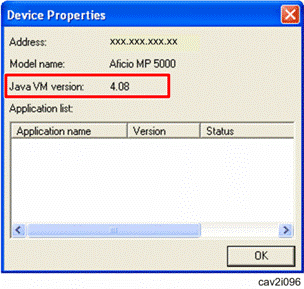
8.
Check if the DSDK application
to be installed supports this version of the Java VM.
§
Device List > Operation >
Property
§
Device List > right-clicking
in the device list > Property
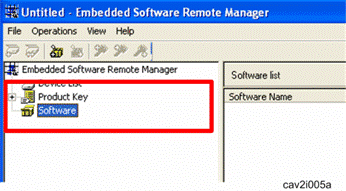
1.
Click the "Software"
icon in the left window to work on Software (it is highlighted).
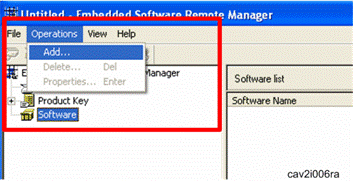
2.
Select the
"Operation" menu item and click the "Add…".
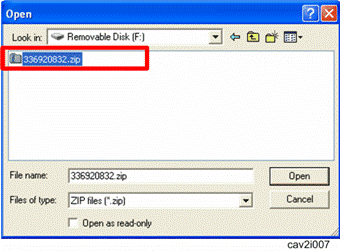
3.
Select a DSDK application zip
(product-ID zip) previously downloaded and click "Open" button.
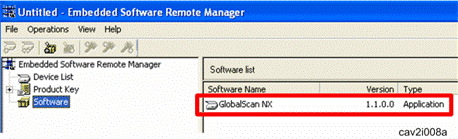
4.
The software name and version
now appear in the "Software List" window of this utility.
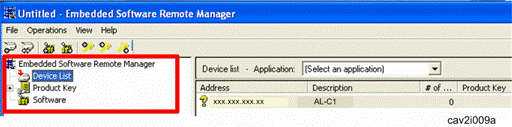
1.
Click the "Device
List" icon on the left window to ensure you are working on a Device List
(it is highlighted).
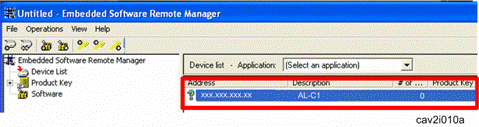
2.
Click the display name of the
target machine on the "Device List" window to install the DSDK
application (it is highlighted).
§
You can select multiple target
machines here with the display names highlighted.
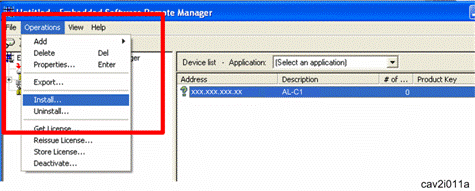
3.
Select the
"Operation" menu item and click the "Install…".
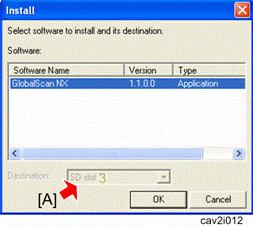
4.
Select the software to be
installed and the destination in the drop-down window.
§
For some DSDK applications,
selecting the destination [A] is not required (drop-down window is grey down).
It is because the destination [A] is automatically selected by default.
5.
Click on the "OK"
button.
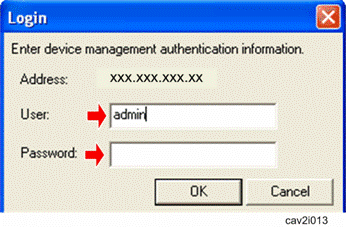
6.
Ask a machine administrator to
input a user name and password of the machine administrator.
7.
Click the "OK"
button.
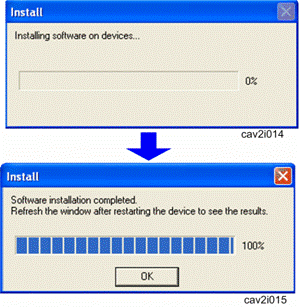
8.
Click the "OK" button
after the installation completion screen has appeared.
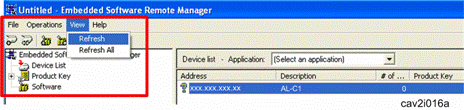
9.
Select the target machine to
view in the Device List.
10.
Select the "View"
menu item and click the "Refresh.
§
Click the "Refresh
All" if you have installed software in the multiple target machines. This
refreshes all machines listed in the "Device List".
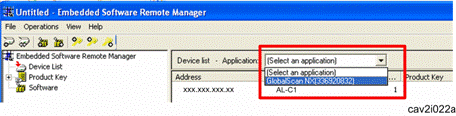
11.
Click the device in the window
(it is highlighted).
12.
Select the DSDK Application
which is already installed from the “Application” drop-down window.
§
In this example, “GlobalScan
NX” is selected.
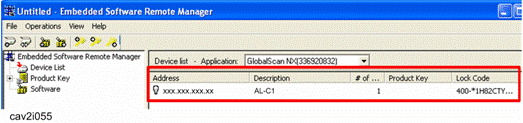
13.
The white lamp icon indicates
that the DSDK application is appropriately installed. Make sure that the lock
code appears in the Lock Code column.
§
There are some status icons
shown at the left of the "Address" column in the "Device List".
See p.18 "Status
Icon List" in this chapter.
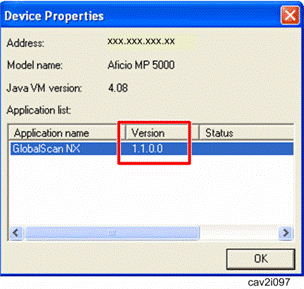
14.
Check if the version of the
installed DSDK application matches the version of the customer's DSDK
application in the client PC by opening the device property screen.
§
Device List > Operation >
Property
§
Device List > right-clicking
in the device list > Property
To activate DSDK Application, the followings
are required:
§
Product Key(s) for DSDK
application(s)
§
User name and password for
login to the activation server
§
Check the status of the target
machine(s).
Ask a customer about the user name and password
and Product Key(s) which the customer has already registered in the activation
server.
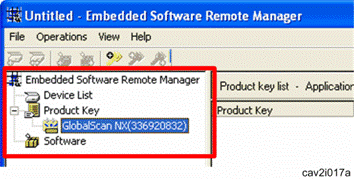
1.
Click the "Product
Key" icon on the left window to ensure you are working on a Product Key
list.
2.
Select the DSDK application you
want to activate (it is highlighted).
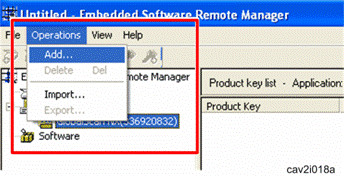
3.
Select the
"Operation" menu item and click on the "Add".
§
Product keys can be also added
by "Import…" from a file. For details, see p.49 "Importing
Product Keys from File" in the Appendix section.
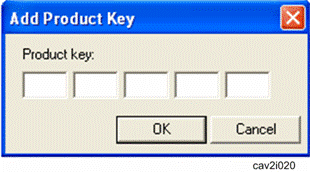
4.
Enter the exact same
"Product Key" provided with a product certification which a customer
has received after purchasing DSDK Application.
§
You can also register multiple
product keys in the "Product Key List" one by one with this product
key entry.
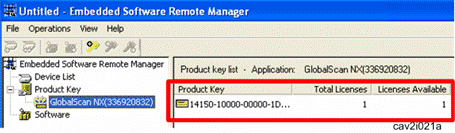
5.
A "Product Key"
appears in the "Product Key list" window.
§
The "Total Licenses"
varies depending on a condition of product purchase.
§
The available licenses are
automatically used from the top line in the product key column. It is not
possible to decide which product key is used.
§
To get a
license for DSDK Application, the internet connection is required. If it is not
available, see p.47 "Getting and Returning a License without Internet Connection" in the Appendix section for details.
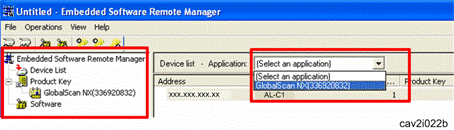
1.
Click the "Device
List" icon on the left window to ensure you are working on a "Device
List" (it is highlighted).
2.
Click the device in the
"Device List" window (it is highlighted).
3.
Select the DSDK Application
which is already installed from the "Application" drop-down window.
§
In this example, “GlobalScan
NX” is selected.

4.
Select the
"Operation" menu item and click the "Get License".
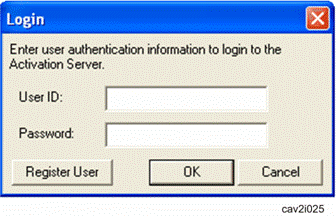
5.
Enter the exact same "User
ID and Password" registered in the activation server.
6.
Select the "OK" button.
§
"Register User"
button is used only when a customer has not registered user information to the
activation server. For details, see p.49 "Product
Registration for DSDK Application" in the Appendix section.
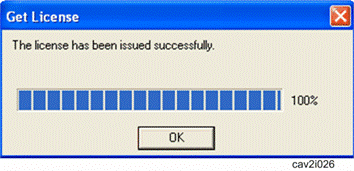
7.
Click the "OK" button
after the completion screen of the license publication has appeared.

1.
The picture above shows the
followings:
§
The DSDK application has been
installed in the target machine.
§
The product license for the
selected DSDK application has already been obtained from the activation server.
2.
Select the
"Operation" menu item and click the "Store License…" to
store the product license in the target machine.
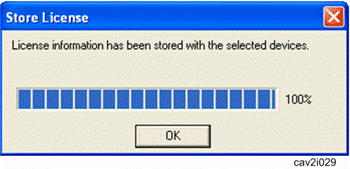
3.
The "Store License"
process runs and displays a notification box when it is completed.
4.
Click the "OK"
button.
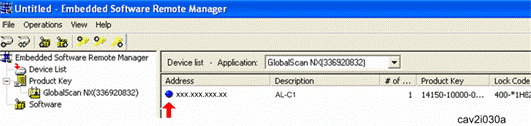
5.
Make sure that the blue icon
appears in the "Device list" when the DSDK Application is
appropriately activated (license for the selected application has already been
stored in the target machine).
§
If any other icon except blue
appears in the "Device list", check the icon appeared in the
"Device List". And then retry this procedure.
6.
Turn off and on the target
device.
7.
Save this device status data as
a Work state archive (filename.caz) after storing a license in a target machine
and ask a customer to keep this file.
§
This Work
state archive will be necessary for the deactivation and uninstallation of DSDK
application(s). Make sure that a customer keeps a Work state archive.
8.
Select the "File" menu
item, and then "Exit" to close the "Remote Manager".
§
Clicking the close application
window button ([X] in upper right) can also close the "Remote
Manager".
9.
The pop-up dialogue box appears
to ask you again if this device status data has to be saved to a Work state
archive (filename.caz).
10.
Select the "Yes"
button if you have not saved the device status data (Work state archive).
11.
Ask a machine administrator to
check if the activated DSDK application is "Starting Up".
Uninstallation Procedure
You can deactivate DSDK Application in a
machine installed before, and then activate it in another machine.
§
To return a
license to the activation server, the internet connection is required. If it is
not available, see p.47 "Getting and Returning a License without Internet Connection" in the Appendix section.
1.
Execute the "Remote
Manager".
2.
Open the Work state archive
(filename.caz) which is already saved before.
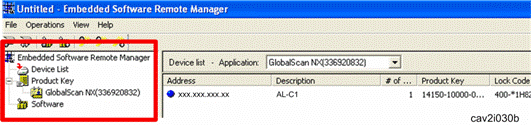
3.
Click the "Device
List" icon on the left window to ensure you are working on a Device list.
4.
Select the DSDK Application you
want to deactivate (it is highlighted).

5.
Select the
"Operation" menu item and click the "Deactivate".
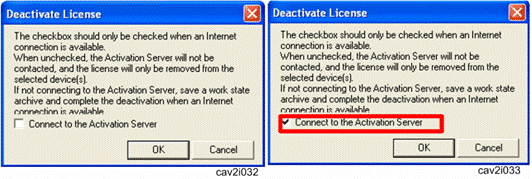
6.
If a machine and "Remote
Manager" are in internet connection, click the check box to connect to the
activation server.
If not, continue
this procedure without clicking the check box.
7.
Click the "OK"
button.
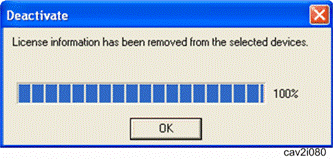
8.
Click the "OK" button
after the "Deactivate" from the target machine has been completed.
9.
SAVE this deactivation data from the
target machine as a Work state archive file if the machine and "Remote
Manager" are not in the internet connection or you quit this deactivation
procedure now.
§
This
deactivation data must be necessary for deactivating the license from the
activation server later.
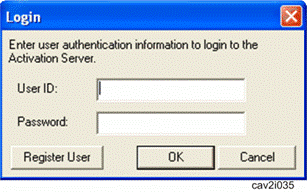
10.
Enter the exact same "User
ID and Password" registered in the activation server.
11.
Click the "OK"
button.
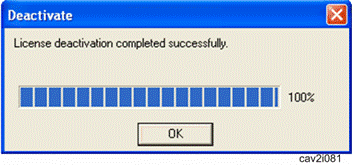
12.
Click the "OK" button
after "Deactivate" from the activation server has been completed.
13.
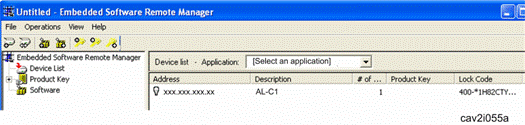
The white lamp icon appears in
the Device list if the DSDK Application is appropriately deactivated.
14.
Go to step 2 in the "DSDK
Application Uninstallation" to continue the deactivation and uninstalltion
procedure.
15.
If you want to quit here before
the uninstallation procedure, save this device status data as a Work state
archive (filename.caz) and ask a customer to keep this file.
§
Unistallation
must be executed from a PC with a network connection to a target machine.
§
Before this
uninstallation procedure, deactivation must be done. Otherwise, product key
cannot be used for machines except the target machine. As long as the target
machine remains same, the Activation Server can reissue the same License code
using the same product key. For detail, see p.47 "Reissue License" in the "Appendix" section.
1.
Execute the "Remote
Manager" and open the Work state archive (filename.caz) which is already
saved before if you have closed the "Remote Manager" after the
deactivation procedure.
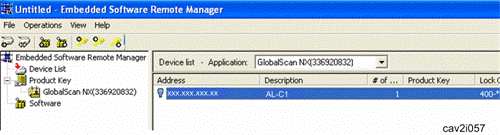
2.
Click a target machine to
uninstall DSDK Application in a Device List on the right window (it is
highlighted).
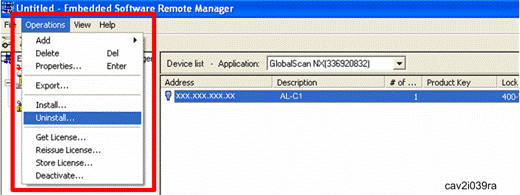
3.
Select the
"Operation" menu item and click "Uninstall".
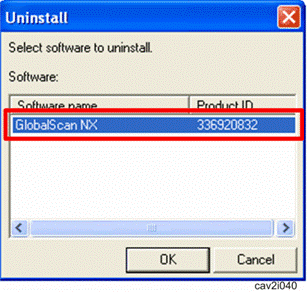
4.
Select software to uninstall
and click the “OK” button.
5.
Ask a machine administrator to
input a user name and password of the machine administrator.
6.
Click the "OK"
button.
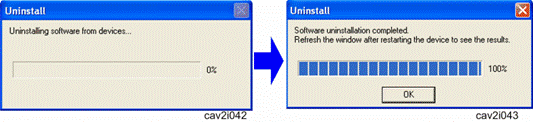
7.
Click the "OK" button
after the uninstallation completion screen has appeared.
8.
Turn off and on the target
machine.

9.
Select the target machine to
view in the Device List.
10.
Select the "View"
menu item and click the "Refresh.
§
Click the "Refresh
All" if you have installed software in the multiple target machines. This refreshes
all machines listed in the "Device List".
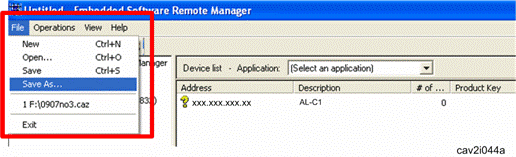
11.
Select the "File"
menu item, and then "Exit" to close the "Remote Manager".
§
Clicking the close application
window button ([X] in upper right) can also close the "Remote
Manager".
12.
The pop-up dialogue box appears
to ask you if this device status data has to be saved to a Work state archive
(filename.caz).
13.
Select the "Yes"
button if you have not saved the device status data (Work state archive).
14.
Ask a customer to keep this
Work state archive (filename.caz).
The following procedure is only available for
the following RCL-developed DSDK applications:
§
GlobalScan NX
§
Card Authentication Package
§
First update the Java VM Platform if
the Java VM Platform and DSDK application are supposed to be updated at the
same time.
Remote Manager can update a DSDK application in
the target machine. To update a DSDK application with the Remote Manager,
follow the procedure below.
1.
Ask a machine administrator to
stop the DSDK application with the operation panel (the procedure for stopping
a DSDK application is described below for reference).
§
Stop other SDK applications if
they have been installed in the machine.
§
You can also stop the DSDK
application with the web image monitor (the procedure for stopping a DSDK
application is described below for reference).
2.
Launch the Remote Manager.
3.
Add a DSDK application for
updating in the Remote Manager (see p.22 "Adding
a DSDK Application in the "Remote Manager").
4.
Install the DSDK application
for updating in the target machine (see p.23 "Installing
the DSDK Application in the Target Machine").
5.
Turn off and on the target
machine.
6.
Ask a machine administrator to
check if the version of the DSDK application is updated and if the installed
DSDK application is "Starting Up".
1.
Press User Tools/Counter key on
the machine's operation panel.
2.
Log in the "User
Tools" using a machine administrator account (user name and password).
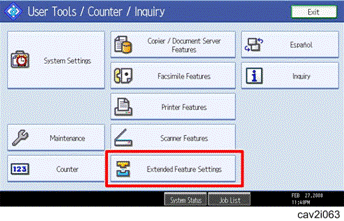
3.
The screen shown above is
displayed.
4.
Press "Extended Features
Settings".
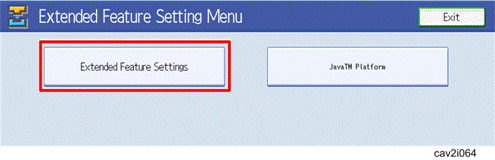
5.
The screen shown above is
displayed.
6.
Press "Extended Features
Settings".
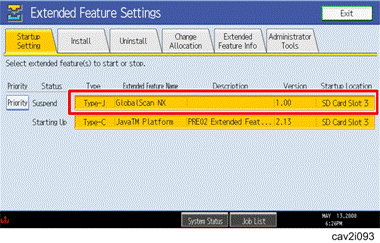
7.
Press a bar of the target DSDK
application to stop.
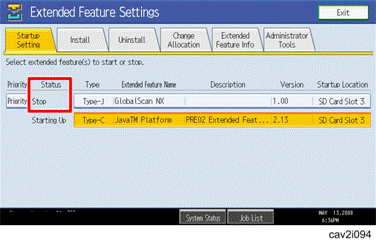
8.
"Stop" is displayed
in the Status column and DSDK application bar turns white if a target DSDK
application is stopped.
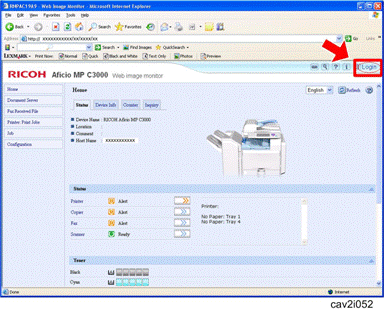
1.
Access the "Web Image
Monitor" of the target machine using your web browser.
2.
Click the "Login"
button.
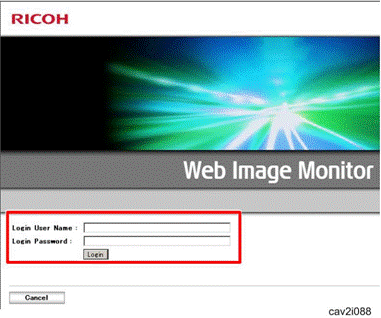
3.
Login the target machine using
a machine administrator name and password.
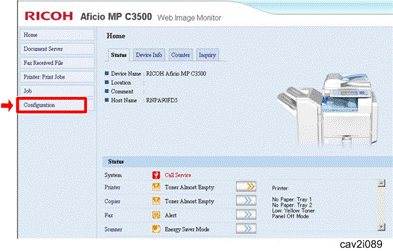
4.
Click the
"Configuration".
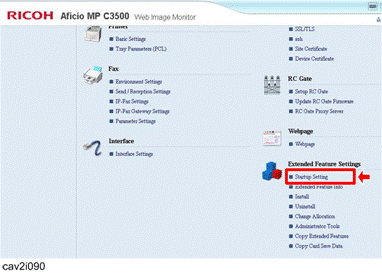
5.
Click the "Startup
Setting" in the "Extended Feature Settings".
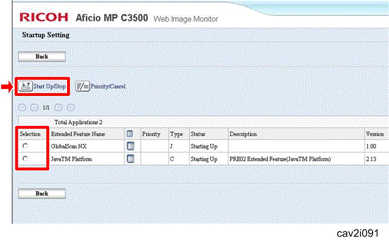
6.
Check the radio button of a
DSDK application to be updated, and then click the "Start Up/Stop".
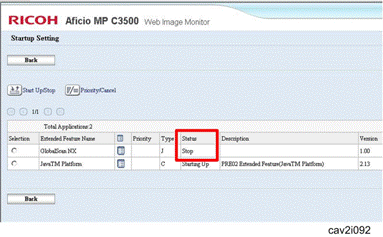
7.
"Stop" is displayed
in the Status column if a target DSDK application is stopped.
Appendix
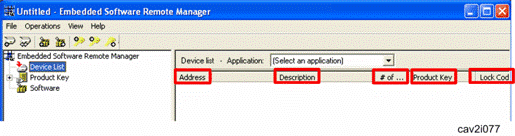
Up to 100 devices can be registered in the
Device List.
|
Column Name
|
Decription
|
|
Address
|
Displays IP address(es) or host(s) name of
added target machines.
|
|
Description
|
Displays description(s) of the target
machines.
|
|
# of …
|
Displays the number of installed applications
in the target machine.
|
|
Product
Key
|
Displays a product key added for the target
machine.
|
|
Lock
Code
|
Displays the lock code of the target machine.
|
|
License
Code
(not
shown)
|
Displays "Exists" if a product
license is added to the target machine.
Displays "Removed" if a product
license is returned from the target machine.
|
|
Status
(not
shown)
|
Displays the result (message and error code)
of the latest operation for the target machine. For details about error code,
see the "Troubleshooting" following this content.
|
|
Menu Item
|
Description
|
|
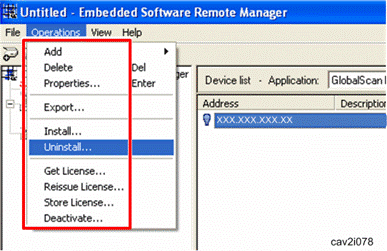
Add – Manual Input…
|
Adds a machine (device) manually.
|
|
Add – From File…
|
Adds a machine from a CSV file or hosts file.
|
|
Delete
|
Deletes a machine in the device list.
|
|
Properties…
|
Opens a machine's information screen.
|
|
Export…
|
Exports a device list as a CSV file format.
|
|
Install…
|
Installs or updates a DSDK application in the
target machine.
|
|
Uninstall…
|
Uninstalls a DSDK application from the target
machine.
|
|
Get License…
|
Gets a product license for the target
machine.
|
|
Reissue License…
|
Regains a product license for the target
machine from the Activation Server as long as the Lock code remains the same
(i.e. the machine is the same) and product key used for the Activation is the
same.
|
|
Store License…
|
Stores an obtained product license in the
target machine.
|
|
Deactivate…
|
Deactivates the product license in the target
machine.
|
|
Column
|
Description
|
|
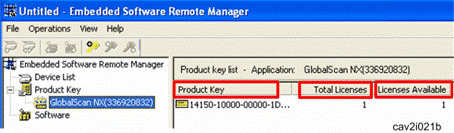
Product Key
|
Product key
|
|
Total License
|
The number of licenses included in the
product key
|
|
Licenses Available
|
The number of licenses not yet assigned
|
|
Menu
item
|
Description
|
|
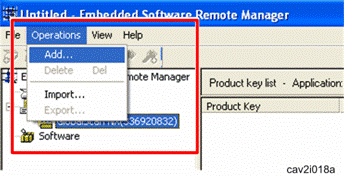
Add…
|
Adds a product key to the list
|
|
Delete
|
Deletes the product keys selected from the
list
|
|
Import…
|
Imports product keys from the product key
list files.
|
|
Export…
|
Exports the product key list to one or more
files.
|

Up to 64 software can be registered in the
Software list.
|
Column
|
Description
|
|
Name
|
Software name
|
|
Version
|
Software version
|
|
Type
|
Software type
There are the following software types:
§
Application: Application (New
install)
§
Application update:
Application (Update install)
|
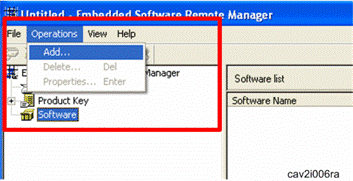
|
Menu
item
|
Description
|
|
Add…
|
Adds new software to the list
|
|
Delete
|
Removes the software selected from the list
|
|
Property…
|
Shows the properties of the software selected
from the list
|
To get or return a license for DSDK
Application, the internet connection is required. If it is not available,
follow the procedure below;
1.
Open the Work state archive
(filename.caz) which is already saved before.
2.
Get or return a license in
anyplace where you can access the internet with the "Remote Manager".
3.
Save a Work state archive
(filename.caz).
§
File > Save or Save as
You can reissue a license once you have got a
license from the activation server even though you have mistakenly lost a
license.
See the following examples.
§
You have shut down the
"RemoteManager" before saving a Work File (filename.caz) or storing a
license to a target machine.
§
You have uninstalled a DSDK
application without deactivation.
The Activation Server will reissue the same
License code as long as the Lock Code remains the same (i.e., the device is the
same) and product key is the same.
The license reissue function may not be
available for every DSDK application. The license reissue function will be
available for the following RCL-developed DSDK applications:
§
GlobalScan NX
§
Card Authentication Package
§
Enhanced Locked Print NX
1.
Click the "Device
List" icon on the left window to ensure you are working on a Device list.
2.
Select DSDK Application you
want to activate (it is highlighted).
3.
Add the product key used for
activating the DSDK Application in the "RemoteManager" again.
§
For details, see p.27 "Adding
a Product Key for DSDK Application in the Remote Manager".

4.
Select the
"Operation" menu item and click the "Reissue License...".
5.
Follow the procedure in the p.30 "Storing
a License in a Target Machine" described before if you want to continue the
DSDK Application activation.
You can add devices from a CSV file (Remote
Manager format) or a hosts file saved as a CSV file format from the "save
as a Hosts File" menu in the file menu of the "SmartDeviceMonitor for
Admin". You can also add devices using the "DeviceListTemplate"
csv file stored under the "template folder" in the "Remote
Manager (zip file)".
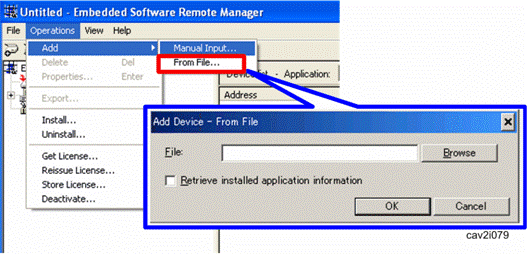
The dialogue above is displayed when "From
File" menu is selected (Operation > Add > From File).
|
Menu item
|
Description
|
|
File
|
Path of CSV file or hosts file (CSV format)
Maximum character strings: 260
|
|
Retrieve installed application information
|
When check box is checked, device information
is updated after pressing [OK].
|
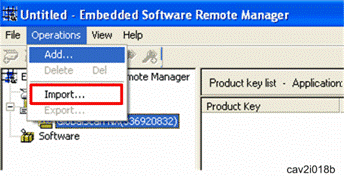
Product keys can also be added by importing
from a file (Operations > Import...). The file that can be imported is text
file with one line per product key as shown below.

§
Each product key must be typed
in each line in a ".text" formatted file. Otherwise, importing
product keys from a file may fail.
If you are asked to register a user ID and password
and product key(s) by a customer, follow this procedure.
1.
Access the following URL.
§
URL:
https://www.onlineactivation.net
2.
Select the language to display
from the drop-down list.
3.
Click "Help" icon to
get the activation guide.
4.
Register user information by
following the procedures in the activation guide.
Work State Archive Description
Device list, product key list and software list
can be saved in a Work state archive. All the Work state archives are archived
in zip but with the extension caz.
The format is the same as those created by
Remote Manager. File name is Devicelist.csv.
One file is created per a feature as [Feature
name].txt. Each file contains its product keys, with one line per product key.
All the contents in the software list window
are saved into SoftwareList.csv.
Retrieve each file from a caz file and update
all the lists.
Save all the Work state archives into a .caz
file (archived in zip).
The following is the configuration of the
Device List File (CSV file) exported by Remote Manager. The first line should
describe the following:
|
Column
|
Value
|
Comments
|
|
1
|
Device Address
|
|
|
2
|
Device Description
|
|
|
3
|
Product ID
|
|
|
4
|
Feature Name
|
|
|
5
|
Product Key
|
|
|
6
|
Software Name
|
|
|
7
|
Lock Code
|
|
|
8
|
License Code
|
|
|
9
|
Status Code
|
|
|
10
|
Device Serial Number
|
|
|
11
|
Model Name (PnP Name)
|
|
|
12
|
Java VM Version
|
|
|
13
|
Activation Status
|
Following values are input in this field
§
none: Not activated
§
Invalid: Activation is
invalid
§
et: License is obtained from
Activation Server
§
cancel: License code is
deactivated
§
success: Activated
successfully
|
|
14
|
Application Version
|
|
|
15
|
Uninstall is possible
|
Whether if uninstall is possible or not
§
enable: possible
§
disable: impossible
|
|
16
|
Device error code
|
Error code obtained from device (decimal
number)
|
|
Error
Message
|
Comment
|
|
An unknown error occurred.
|
This uncommon error typically indicates an
unstable system. Reboot or use a different PC.
|
|
Reading file failed.
|
Remote Manager was not able to read the
selected file. Please verify that the file is the correct format and exists
at the target location.
|
|
Writing file failed.
|
Remote Manager was not able to write the
file. Please check the available
space and access privileges for the target location.
|
|
Initialization failed.
|
Remote Manager was unable to initialize its
file library. Reboot or use a
different PC.
|
|
An internal processing error occurred.
|
An invalid value was encountered. This is a
critical error, and the log file should be sent to RCL.
|
|
A timeout error occurred.
|
Check the network environment.
|
|
There is insufficient memory.
|
Add more virtual memory.
|
|
File compression failed.
|
Unable to compress file due to lack of disk
space or system error. Verify the available disk space and try again.
|
|
File decompression failed.
|
Remote Manager was unable to decompress the
targeted file. Verify that the file is not corrupt, and that there is enough
space on the disk for a temporary file.
|
|
There has been a sharing violation.
|
The target device maybe in use. Please try
again later.
|
|
You do not have access privileges for this
operation.
|
The current user does not have access
privileges. Please log in as an
administrator.
|
|
The process could not be completed because
the disk is full.
|
There is not enough space on the HDD to save
the temporary files. Create some free space before retrying.
|
|
A network communication error occurred.
|
Check the network environment.
|
|
Authentication failed.
|
The entered username/password is
incorrect. Please verify the
login information.
|
|
File name has not been specified.
|
A target file has not been selected.
|
|
The target device does not exist.
|
The targeted device(s) have already performed
the selected operation. Please choose a different device.
|
|
The specified file could not be opened.
|
The targeted file is in the wrong format.
|
|
The device is not yet ready.
|
Device is on but unable to receive
information (i.e. device is warming up). Wait for a while then retry.
|
|
The process could not be completed because
the device is in use.
|
Wait for the device to become available then
retry.
|
|
The specified device is turned off or is not
supported.
|
Make sure the selected device is a supported
type and is turned on.
|
|
Enter the address of the device.
|
No IP address was entered. Please enter an IP address then retry.
|
|
The specified device is already added.
|
The device is currently registered. Please
specify a different device.
|
|
There are not enough licenses available.
|
All licenses of a registered product key are
in use.
Add a different product key, or deactivate an
active device.
|
|
Failed to make a request for license
publication to Activation Server.
|
The local network environment has a problem,
or the Activation Server is down.
|
|
Failed to obtain license code.
|
The local network environment has a problem,
or the Activation Server has detected an error or timed out.
|
|
Device information could not be updated.
|
There was a network error. Please try again
later.
|
|
The product key entered is invalid.
|
The product key is incorrect. Please verify
and try again.
|
|
The product key entered does not match with
the application selected.
|
The product key was correct but for a
different application. Please
select the correct application or a different product key.
|
|
The product key entered is already added.
|
Please verify that the correct key was input,
or enter a different product key.
|
|
The product key specified cannot be deleted
because it is being used.
|
Please deactivate all licenses before
attempting to delete the key.
|
|
The product key has not been added.
|
The current operation was unable to complete
because no corresponding product key has been registered. Please add a product key to complete
the operation.
|
|
There are not enough product keys. Please add
more license(s). Do you want to continue anyway?
|
There are not enough licenses available to
activate on all selected machines.
Please add more licenses/product keys, or deactivate any undesired
devices.
|
|
The software specified is invalid.
|
The selected package contains unsupported software. Please select a different package, or
verify the contents of the desired package.
|
|
The software specified is already added.
|
The selected application is currently
registered.
|
|
Some of the devices could not be imported
because the maximum number of devices has been reached. Check the results of
the operation.
|
§
Remote Manager was unable to
import all devices from a Work state archive, a CSV file, or a Hosts file as
the maximum number of registered devices has been reached. Determine which
devices were added, then manually add/remove as desired.
|
|
Some of the software could not be imported
because the maximum number of software has been reached. Check the results of
the operation.
|
§
Remote Manager was unable to
import all applications from a Work state archive as the maximum number of
registered applications has been reached. Determine which applications were
added, then manually add/remove as desired.
|
|
There is some invalid device information in
the file. Check the results of the operation.
|
§
The selected Work state
archive, hosts file or CSV file contains invalid device information. Please
verify that all device information in the selected file is correct.
|
|
There are some invalid product keys in the
file. Check the results of the operation.
|
§
The selected Work state
archive or text file contains an invalid product key. Please verify that all
product keys in the selected file are correct.
|
|
There is some invalid software in the file.
Check the results of the operation.
|
§
The selected Work state
archive contains invalid application data. Please verify that all application
data in the selected file is correct.
|
|
The software selected does not exist.
|
Remote Manager was unable to detect the
selected application for uninstallation. Please verify that the application
is currently installed on the device.
|
|
Software is not selected.
|
No application was chosen. Please be sure to chose an application
for removal.
|
|
Necessary modules are not found.
|
Necessary components of the application
package are missing. Please contact RCL for a new application package.
|
Error code is displayed in the
"Status" column of Remote Manager's operation screen.
If an error still appears after taking action,
collect all of Remote Manager's logs that are saved in the folder (default
folder name: temp) where EmbeddedSoftwareRemoteManager.exe is located so that
they may be used for analysis. (See p.73 "Collection
of Remote Manager's Logs ")
|
Error Code
|
Description
|
|
E00
|
ERROR: Operation progress could not be obtained.
|
|
<Action>:
Try again later.
<Remarks>:
This is a rare case. This might occur when
sending a license request to the Activation Server immediately after
registering the product key on the Activation Server.
|
|
E01
|
ERROR: Authentication failed.
|
|
<Action>:
Verify that the User ID and Password are
correct then try again.
|
|
E02
|
ERROR: The product key is invalid.
|
|
<Action>:
Verify that the product key is correct and is
registered with the Activation Server.
|
|
E03
|
ERROR: The product name is invalid.
|
|
<Action>:
Contact the administrator of the Activation
Server because this error is caused by a mistake made when the product was
added to the Activation Server.
|
|
E04
|
ERROR: The lock code is invalid.
|
|
<Action>:
Reboot the device. If the error still
appears, the device in question is the source of the trouble.
|
|
E05
|
ERROR: [Get/Reissue License] Database write error
|
|
<Action>:
Contact the administrator of the Activation
Server.
<Remarks>:
This is a rare case and caused by an internal
error on the Activation Server. The license was issued by the Activation
Server but failed to be written to the Activation Server's DB.
|
|
E06
|
ERROR: [Get License] A license has already been issued by the Activation
Server.
|
|
<Action>:
Save the current status in a work state
archive, and then restart Remote Manager.
<Remarks>:
This is a rare case and caused by an internal
error in Remote Manager.
|
|
E07
|
ERROR: [Reissue License] A license has not been issued by the Activation
Server.
|
|
<Action>:
Save the current status in a work state
archive, and then restart Remote Manager.
<Remarks>:
This is a rare case and caused by an internal
error in Remote Manager.
|
|
E08
|
ERROR:
[Get/Reissue License] The license has expired.
|
|
<Action>:
Contact the administrator of Activation Server
because at this time there is no product with a limited-time license.
|
|
E12
|
ERROR: [Get/Reissue License] The Activation Server failed to generate a
license code.
|
|
<Action>:
Contact the administrator of the Activation
Server because this error is caused by an internal error on the Activation
Server.
|
|
E13
|
ERROR: Failed to read product key file.
|
|
<Action>:
Contact the administrator of the Activation
Server because this error is caused by an internal error on the Activation
Server.
|
|
E14
|
ERROR: Failed to read lock code.
|
|
<Action>:
Contact the administrator of the Activation
Server because this error is caused by an internal error on the Activation
Server.
|
|
E15
|
ERROR: Failed to read license code file.
|
|
<Action>:
Contact the administrator of the Activation
Server because this error is caused by an internal error on the Activation
Server.
|
|
E16
|
ERROR: The maximum number of devices allowed for batch registration has
been exceeded.
|
|
<Action>:
Save the current status in a work state
archive, and then restart Remote Manager.
<Remarks>:
This is caused by an internal error in Remote
Manager.
|
|
E17
|
ERROR: Product key information does not match.
|
|
<Action>:
Save the current status in a work state
archive, and then restart Remote Manager.
<Remarks>:
This is caused by an internal error in Remote
Manager.
|
|
E18
|
ERROR: Failed to delete uploaded files.
|
|
<Action>:
Contact the administrator of the Activation
Server because this error is caused by an internal error on the Activation
Server.
|
|
E19
|
ERROR: License data was not found.
|
|
<Action>:
Save the current status in a work state
archive, and then restart Remote Manager.
<Remarks>:
This is caused by an internal error in Remote
Manager.
|
|
E20
|
ERROR: POST data could not be received.
|
|
<Action>:
Contact the administrator of the Activation
Server because this error is caused by an internal error on the Activation
Server.
|
|
E21
|
ERROR: USERID is invalid.
|
|
<Action>: Input a valid user ID.
|
|
E22
|
ERROR: PASSWORD is invalid.
|
|
<Action>: Input a valid password.
|
|
E23
|
ERROR:
PROCESSNAME is invalid.
|
|
<Action>:
Save the current status in a work state
archive, and then restart Remote Manager.
<Remarks>:
This is caused by an internal error in Remote
Manager.
|
|
E24
|
ERROR: PROCESSFLG is invalid.
|
|
<Action>:
Save the current status in a work state
archive, and then restart Remote Manager.
<Remarks>:
This is caused by an internal error in Remote
Manager.
|
|
E25
|
ERROR: PRODUCTNAME is invalid.
|
|
<Action>:
Save the current status in a work state
archive, and then restart Remote Manager.
<Remarks>:
This is caused by an internal error in Remote
Manager.
|
|
E26
|
ERROR: [Reissue License] License reissuing is not supported for this
application.
|
|
<Action>:
Contact the administrator of the Activation
Server to determine if the current license is capable of being forcibly
deactivated (allowing for a new license to be issued).
|
|
E30
|
ERROR:
Failed to access database.
|
|
<Action>:
Contact the administrator of the Activation
Server because this error is caused by an internal error on the Activation
Server.
|
|
E41
|
ERROR: The product key has not been registered with the Activation
Server by the specified user.
|
|
<Action>:
The current product key is not registered
with the currently logged in user. Register the product key with the
Activation Server.
|
|
E43
|
ERROR: [Deactivate (Activation Server)] No record of the License exists
in the Activation Server.
|
|
<Action>:
Save the current status in a work state
archive, and then restart Remote Manager.
<Remarks>:
This is caused by an internal error in Remote
Manager.
|
|
E44
|
ERROR: [Deactivate (Activation Server)] This product key has been
activated too many times and may not be deactivated.
|
|
<Action>: Use another product key to activate the product, or contact the
administrator of the Activation server if you feel you have received this
message in error.
|
|
E45
|
ERROR: [Deactivate (Activation Server)] The maximum number of licenses
for use in a batch operation has been exceeded.
|
|
<Action>:
Save the current status in a work state
archive, and then restart Remote Manager.
<Remarks>:
This is caused by an internal error in Remote
Manager.
|
|
E51
|
ERROR: [Store License] An error occurred during data transmission.
|
|
<Action>:
- Remote Manager might have failed to write
the output file. Check the available space and access privileges for the
target media.
|
|
E52
|
ERROR: Could not obtain information about the installed applications.
|
|
<Action>:
- Check that the device is turned on and that
the device is connected to the network.
- Check if the IP address or the host name of
the device is correct.
- Make sure that a VM card is attached to the
device and that Java VM is started up.
|
|
E54
|
ERROR: [Store License] There was a network communication error.
|
|
<Action>:
If using a host name, verify that the host
name is correct. If the host name is correct, check the network environment
and the network settings of the device.
|
|
E55
|
ERROR: [Store License] Device preprocessing failed.
|
|
<Action>: Restart the device.
|
|
E56
|
ERROR:
[Store License] Application information could not
be obtained.
|
|
<Action>:
Verify that the application is installed on
the device.
|
|
E57
|
ERROR: [Store License] There was a communication error with the device.
|
|
<Action>:
Check the network environment and the network
settings of the device.
|
|
E58
|
ERROR: [Store License] The target application was not found.
|
|
<Action>:
Make sure that the application is installed
on the device.
|
|
E70
|
ERROR: [Deactivate (Devices)]
|
|
<Action>:
- Remote Manager might have failed to write
the output file. Check the available space and access privileges for the
target media.
- Remote Manager might have failed to stop the application. Retry after
stopping the application.
|
|
E72
|
ERROR: [Deactivate (Devices)] There was a network communication error.
|
|
<Action>:
If using a host name, verify that the host
name is correct. If the host name is correct, check the network environment
and the network settings of the device.
|
|
E73
|
ERROR: [Deactivate (Devices)] Device preprocessing failed.
|
|
<Action>: Restart the device.
|
|
E74
|
ERROR: [Deactivate (Devices)] Failed to get application information.
|
|
<Action>:
Make sure that the application is installed
on the device.
|
|
E75
|
ERROR: [Deactivate (Devices)] There was a device communication error.
|
|
<Action>:
Check the network environment and the network
settings of the device.
|
|
E76
|
ERROR: [Deactivate (Devices)] The target application was not found.
|
|
<Action>:
The Java VM Platform might not be operating
correctly. Restart the device.
|
|
E77
|
ERROR: [Deactivate (Activation Server)] A license was not issued for the
selected product key.
|
|
<Remarks>:
The license may have been deactivated
already.
|
|
E99
|
An unknown error occurred.
|
|
<Action>:
Save the current status in a work state
archive, and then restart Remote Manager.
<Remarks>:
This is a rare case and is caused by an
internal error in Remote Manager.
|
|
E100
|
ERROR: [Installation] Could not communicate with devices.
|
|
<Action>:
Check the network environment and the network
settings of the device.
|
|
E101
|
ERROR: [Installation] There was an internal processing error.
|
|
<Action>:
Save the current status in a work state
archive, and then restart Remote Manager.
<Remarks>:
This is a rare case and is caused by an
internal error in Remote Manager.
|
|
E102
|
ERROR:
[Installation] There was a memory error.
|
|
<Action>:
Increase the size of the Heap memory or stop
the active application. (See p.81 "Procedure
for Changing a Device's Heap and Stack Sizes")
<Remarks>:
The available Heap memory is insufficient. If
the file size of an application is large, memory is used when installing an
application.
|
|
E103
|
ERROR: [Installation] An I/O error occurred on the device.
|
|
<Action>:
Remote Manager may have failed to write the
file. Check the available space and access privileges for the target media.
|
|
E104
|
ERROR: [Installation] A network error occurred on the device.
|
|
<Action>:
The Java VM Platform might not be operating
correctly. Restart the device.
|
|
E105
|
ERROR: [Installation] A communication error occurred on the device.
|
|
<Action>:
The Java VM Platform might not be operating
correctly. Restart the device.
|
|
E106
|
ERROR: [Installation] The application failed to install.
|
|
<Action>:
The Java VM Platform might not be operating
correctly. Restart the device.
|
|
E107
|
ERROR: [Installation] The jar files are invalid.
|
|
<Action>:
Contact the application design section. If
the application is released from Japan,
contact the Service Support Department of Ricoh Japan.
<Remarks>:
The software package was incorrectly
prepared.
|
|
E108
|
ERROR: [Installation] The device's serial number is invalid.
|
|
<Action>:
Select the correct device for the chosen
serial number, or verify that the serial number is correct for the selected
device.
<Remarks>:
This error appears if the application's
license is limited to a specified device.
|
|
E109
|
ERROR: [Installation] An internal file transfer error occurred on the
device.
|
|
<Action>:
Remote Manager might have failed to save a
file on the target device when updating Java VM. Check the available space
and access privileges for the target media.
|
|
E110
|
ERROR: [Installation] A zip file handling error occurred on the device.
|
|
<Action>:
The uploaded file might not be a zip file.
Verify that the uploaded file is a zip file.
|
|
E111
|
ERROR: [Installation] Zip file decompression error occurred on the
device.
|
|
<Action>:
The zip file might be damaged or corrupted.
Obtain another zip file.
|
|
E112
|
ERROR: [Installation] An unknown error occurred on the device.
|
|
<Action>:
The Java VM Platform might not be operating
correctly.
Restart the device.
|
|
E200
|
ERROR: [Uninstallation] Could not communicate with the device.
|
|
<Action>:
Check the network environment and the network
settings of the device.
|
|
E201
|
ERROR: [Uninstallation] There was an internal processing error.
|
|
<Action>:
Save the current status in a work state
archive, and then restart Remote Manager.
<Remarks>:
This is a rare case and caused by an internal
error in Remote Manager.
|
|
E202
|
ERROR: [Uninstallation] A memory error occurred on the device.
|
|
<Action>:
Increase the size of the Heap memory or stop
the active application.
<Remarks>:
The available Heap memory is insufficient. If
the file size of an application is large, memory is used when installing an
application.
|
|
E204
|
ERROR: [Uninstallation] A network error occurred on the device.
|
|
<Action>:
The Java VM Platform might not be operating
correctly.
Restart the device.
|
|
E205
|
ERROR: [Uninstallation] A communication error occurred on the device.
|
|
<Action>:
The Java VM Platform might not be operation
correctly.
Restart the device.
|
|
E206
|
ERROR: [Uninstallation] The application failed to uninstall.
|
|
<Action>:
The application may have been uninstalled
already.
If the application is not uninstalled,
uninstall the application from the device using its operation panel or Web
Image Monitor. If uninstallation still fails, the registration information or
an application file is probably damaged. In this case, replace the VM card.
|
|
E212
|
ERROR:
[Uninstallation] An unknown error occurred on the
device.
|
|
<Action>:
The Java VM Platform might not be operating correctly.
Restart the device.
|
Remote Manager Installation/ Activation/
Deactivation/ Uninstallation Procedure:
<Installation/Activation>:
1.
Registering a Target Machine in
the Remote Manager
2.
Adding a DSDK Application in
the Remote Manager
3.
Installing the DSDK Application
in the Target Machine
4.
Adding a Product Key for DSDK
Application in the Remote Manager.
5.
Getting a License for DSDK
Application from Activation Server
6.
Storing a License to a Target
Machine
<Deactivation/Uninstallation>:
1.
Deactivate a License on machine
2.
Deactivate a License on
Activation Server
3.
Uninstalling the DSDK
Application from the Target Machine
<Installation/Activation>:
(1) If a work state archive is not saved during
steps 1-4, it is not a problem. Input the information again.
(2) If a work state archive is not saved
between steps 5 and 6, perform a "Reissue License" operation from the
"Operations" menu after following operations:
§
Adding a device in the Device
List
§
Adding a product key used at
the time of Activation in the product key list
§
Refreshing that device
§
Selecting the installed DSDK
application from the Application drop-down list
The Activation Server will reissue the same
License code as long as the Lock Code remains the same (i.e., the device is the
same) and product key is the same. If a "Reissue License" function is
not supported for some DSDK applications, you cannot perform step 6. As a
result, the product key will be wasted until further action is taken. In this
case, ask the administrator of the Activation Server to forcibly deactivate the
license.
(3) If a work state archive is not saved after
step 6, reregister the machine with Remote Manager. However, the following
problems may happen:
§
If the machine gets damaged,
replaced, or discarded, it becomes extremely difficult to identify the machine
in question.
<Deactivation/Uninstallation>:
(1) If a work state archive is not saved
between steps 1 and 2, you cannot perform step 2. As a result, the product key
will be wasted until further action is taken. In this case, ask the
administrator of the Activation Server to forcibly deactivate the license.
(2) If a work state archive is not saved
between steps 2 and 3, reregister the machine with Remote Manager and use
"refresh" from the View menu. Then, select the installed DSDK
application and uninstall it from the target machine.
If a work state archive was saved, it is
possible to update the IP address shown under the "MFD Address"
column in the Device List (csv file), and then import the Device List into
Remote Manager.
Reregister the machine using the new IP address
with Remote Manager, and proceed normally to deactivation step 1. To finish
deactivation step 2, the "Product Key" must be entered again to
complete deactivation with Remote Manager.
If a work state archive was saved, open the
work state archive and select "Deactivate" from the Operations menu.
Then, step 2 (Deactivating a license from Activation server) can be completed
even if the IP address has been changed.
Reregister the machine using the new IP address
with Remote Manager, and proceed to uninstallation step 3.
|
Situation (1):
|
|
Lock codes are not displayed on the Device
List.
|
|
Solution:
|
|
§
Check the VM card to make
sure it is inserted in the correct slot (service slot) of the target device.
§
The Lock code is displayed
after installing a DSDK application to the target device, refreshing that
device, and selecting the installed DSDK application from the Application
drop-down list.
|
|
Situation (2):
|
|
A customer has forgotten their Activation web
site account's User ID and Password (URL: https://www.onlineactivation.net).
|
|
Solution:
|
|
§
Contact the Administrator of
the Activation Server assigned to your region, and inform her/him of the
Product Key information (if a Product Key has already been registered with
the Activation web site) or Company Name used when the Activation web site
account was registered.
|
|
Situation (3):
|
|
A customer has forgotten the Password to
their Activation web site account (URL: https://www.onlineactivation.net).
|
|
Solution:
|
|
§
Use a "Password
reset" menu on the Product Registration web page.
|
|
Situation (4):
|
|
A license was assigned by the Activation
server, but the license code was lost before activation completed (the Remote
Manager was shut down or the .caz file was lost).
|
|
Solution:
|
|
Perform a "Reissue License"
operation from the "Operations" menu after following operations:
§
Adding a device in the Device
List
§
Adding a product key used at
the time of Activation in the product key list
§
Refreshing that device
§
Selecting the installed DSDK
application from the Application drop-down list.
§
The Activation Server will
reissue the same License code as long as the Lock Code remains the same
(i.e., the device is the same) and product key is the same.
§
The status of a product key
can be checked by a service representative by accessing the Administrator
Activation web page (https://www.onlineactivation.net/admin/Admin Login.asp).
Obtain Admin ID and Password from a key person of a service section assigned
to your region to log in the Administrator Activation web page. This will
allow the service representative to check which product key was used when the
DSDK application was activated.
|
|
Situation (5):
|
|
E51 error occurs when trying to store a
License to a target machine.
|
|
Solution:
|
|
Check if a service representative has
performed one of the incorrect actions following below:
Case
1:
1.
Deactivating a license on a
device
2.
Uninstalling the DSDK
application
3.
Installing the SDK
application
4.
Reissuing a license
5.
Storing a license
6.
E51 error has occurred.
Case
2:
1.
Deactivating a license on a
device
2.
Closing Remote Manager.
3.
Opening Remote Manager
4.
Adding the same device with
the DSDK application installed
5.
Reissuing a license
6.
Storing a license
7.
E51 error has occurred.
According to Remote Manager's specifications,
a deactivated license cannot be reused (stored) in a device.
Once a license code is deactivated on the
device, the license code remains on the device, but is marked as unusable.
As a result, an E51 error occurs when trying
to store the same license code reissued from the Activation Server in the
device.
The service representative must request the
administrator of the Activation Server assigned to each region to forcibly
deactivate the current license in this situation, if he/she wants a new
license for the same product key.
|
|
Situation (1):
|
|
To deactivate a DSDK application, that
application's product key is necessary. However, the administrator has
forgotten which product key was used at the time of Activation.
|
|
Solution:
|
|
§
The status of a product key
can be checked by a service representative by accessing the Administrator
Activation web page (https://www.onlineactivation.net/admin/Admin Login.asp).
Obtain Admin ID and Password from a key person of a service section assigned
to your region to log in the Administrator Activation web page. This will
allow the service representative to check which product key was used when the
DSDK application was activated.
|
|
Situation (2):
|
|
An administrator has uninstalled a DSDK
application without deactivating the license. This will make the product key
attached to that license unusable.
|
|
Solution:
|
|
§
Licenses can be reissued as
long as the Lock Code remains the same (i.e., the device is the same) and
product key is the same. If a customer wants to use the license for a
different device, please request the administrator of the Activation Server
to forcibly deactivate the current license.
Note:
The license reissue function may not be made
available for every DSDK application. The license reissue function will be
available for the following RCL-developed DSDK applications:
§
GlobalScan NX, Card
Authentication Package, Enhanced Locked Print NX
|
If a problem occurs in Remote Manager, collect
the following logs that are saved in the folder (default folder name: temp)
where "EmbeddedSoftwareRemoteManager.exe" file is located so that
they may be used for analysis:
§
EmbeddedSoftwareRemoteManager.exe.log
§
InstallApple.exe.log
§
UninstallApple.exe.log
Log collection settings can be changed by
editing the ClientActivator.ini file located in the Remote Manager folder. The
relevant section of the ClientActivator.ini file has been copied below for your
reference:
[Log]
Dir=.\temp
Remove=0
;Note:
;By default, log files collected by Remote Manager
are saved.
;The log is stored in one of three files: a
general EmbeddedSoftwareRemoteManager.exe.log,
;and separate logs containing details for
Installation and Uninstallation operations.
;Each time Remote Manager is run, new
information is appended to these logs.
;As a result, it is recommended that the files
be moved, edited, or deleted periodically to
;reduce the size and increase the readability
of the logs.
;If a ";" is added before Remove=0,
the log file will be deleted when Remote Manager is closed.
;The above settings will store logs in a folder
called "Temp".
;The folder is automatically created by Remote
Manager
;according to the path set by Dir=.\temp.
Please send the following information to RCL
for analysis.
1.
Application Name
2.
Application Version
3.
Device model name
4.
Java VM version
5.
Remote Manager version
(The version can be
checked from "About Embedded Software Remote Manager..." from
"Help menu".)
6.
Remote Manager Log
7.
Device Logs obtained with the
RLogTool (for all GW models)
§
Nos.: Debug Console 125, SAS:
8960, VAS: 9089, Syslog, 4000, 6666.
§
When collecting logs with the
RLogTool, please stop taking logs after an error occurred.
8.
Error code shown in the Remote
Manager.
9.
Product Keys used in operations.
10.
Detailed operation procedures.
(How we can reproduce the problem)
§
The VM Card
should be kept in the machine. The card is only removed after uninstalling the
DSDK application.
§
The VM Card
should NEVER be removed from the
machine while the machine is turned on or while power is being supplied to the
machine via the main power switch. Doing so can damage the VM Card, and this
may result in damage to the machine, requiring a technician.
§
The Java VM
Platform should be kept in the SD Card and NEVER copied to the hard disk drive
(HDD). Copying to the HDD can result in damage to the SD Card or machine.
§
There is one
JavaTM Platform, which auto-installs from the SD Card.
§
If no slot is
available, move the Printer/Scanner application to the PostScript SD Card.
§
The Java VM
Platform cannot be moved to any other SD Card. If the Java VM Platform is moved
to any other SD Card, the Java VM Platform can be damaged.
1.
Turn off the operation switch,
and then off the main power switch if the machine is turned on.
2.
Insert the VM card into an
available slot on the machine.
§
See "Important" at
the beginning of this section.
3.
Turn on the machine.
4.
The Java VM Platform
auto-installs on the machine.
Confirm that the Java VM Platform has been successfully installed,
as follows:
5.
Press User Tools/Counter key on
the machine's operation panel.
6.
The screen shown above is
displayed.
7.
Press "Extended Features
Settings".
8.
The screen shown above is
displayed.
9.
Press "Extended Features
Settings".

10.
JavaTM Platform field appears.
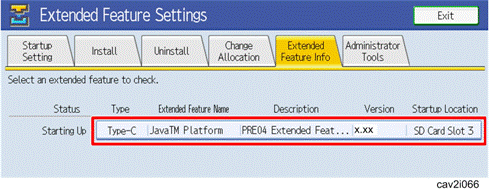
11.
Press "Extended Feature
Info" tab to confirm settings.
12.
Press "Extended Feature
Name" line.

13.
Confirm that the JavaTM
Platform settings are correct.
14.
Press "Exit" to
return to the previous screen.
15.
If you would like to change the
function key allocation, go to the next step. Otherwise, press "Exit"
several times to go back to the main screen.
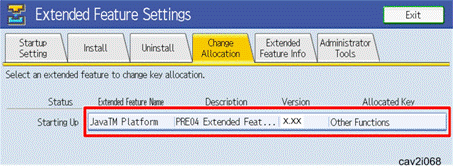
16.
Press "Change
Allocation" tab.
17.
Press "JavaTM
Platform" line.
§
The Other Functions key is
allocated by default. Select whichever key you like to access the Java
Platform.
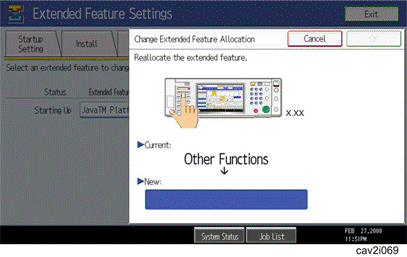
18.
Press a function key to
allocate a key (e.g., Copy, Printer or Scanner), and then press "OK".
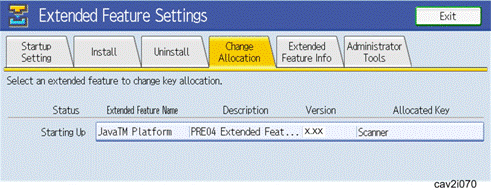
19.
Press "Exit" twice to
exit out of "Extended Feature Settings" and "User Tools.
§
When
uninstalling the Java VM Platform, first uninstall the DSDK application(s) and
Configuration Utility firmware from the machine. After the firmware is
uninstalled, the Java VM Platform can then be uninstalled.
§
Do not remove
the VM Card before the Java VM Platform is safely uninstalled. Otherwise, the
Java VM Platform may be damaged and also the machine may be damaged.
§
The VM Card
should NEVER be removed from the
machine while the machine is turned on or while power is being supplied to the
machine via the main power switch. Doing so will damage the VM Card; this may
result in damage to the device, requiring a technician visit.
1.
Press "User
Tools/Counter" key on the operation panel of the machine.
2.
Press "Extended Feature
Settings".
3.
Press "Extended Features
Settings".
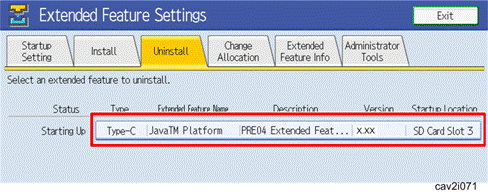
4.
Press "Uninstall"
Tab.
5.
Press "JavaTM
Platform" line.
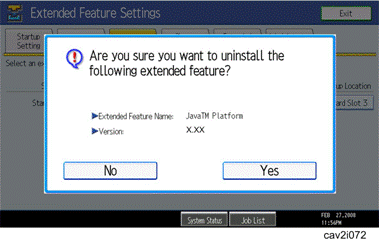
6.
Selection screen is displayed
on the LCD.
7.
Press "Yes" to
uninstall.
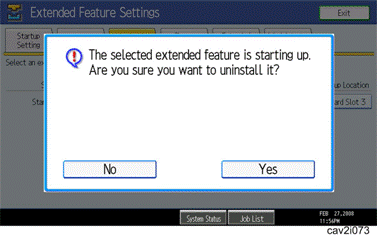
8.
Confirmation screen is
displayed on the LCD.
9.
Press "Yes" to
proceed the uninstallation procedure.
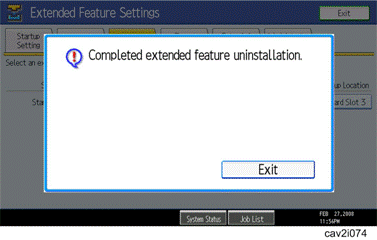
10.
Completion screen is displayed
on the LCD.
11.
Press "Yes" to
terminate the uninstallation.
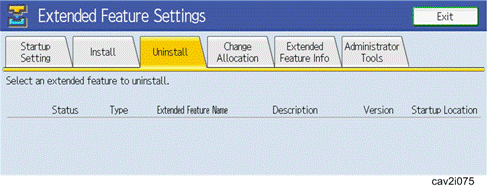
12.
Press "Exit" twice to
get out of Extended Features and User Tools.
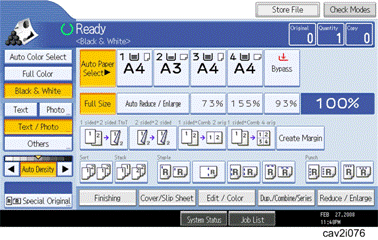
13.
Turn off the operation switch
of the machine.
14.
Wait until the green LED stops
blinking, and then turn off the main power switch.
15.
Wait 30 seconds and remove the
VM Card.
§
Turn on the
machine before installing a new Java VM Platform.
Step 1: From Administrator Tools Ô Heap /
Stack Size Settings
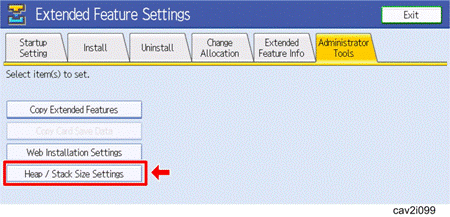
Step 2: Edit Heap and Stack size settings using
the "Change" or "Restore Defaults" buttons.
|
07A
and 08S models:
|
Default Heap Size 10MB, Default Stack Size
64KB.
|
|
05A
models:
|
Default Heap Size 8 MB, Default Stack Size
64KB.
|