




Using sample print

You need Mac OS X v10.2 or higher to use this function.
To use this function, the optional hard disk must be installed on the printer.
The number of pages the printer can save varies depending on the contents of the print images. At most, the printer can save 100 jobs or 9,000 pages for Sample Print, Locked Print, Hold Print and Stored Print.
Sample Print files will not appear on the display panel if they have already been executed or deleted using the Web browser before you select [Sample Print] from the control panel.
Sample Print files printed or deleted using Web Image Monitor after you select [Sample Print] using the control panel will appear on the display panel. However, an error message will appear if you try to print or delete those Sample Print files.
If the application has a collate option, make sure that it is not selected before sending a print job. By default, sample print jobs are automatically collated by the printer driver. If the collate option is selected in the application print dialog box, more prints than intended may be printed.
Print jobs are not saved on the hard disk in the following cases. You can check the error log for jobs not saved.
When there are 100 Sample Print, Locked Print, Hold Print and Stored Print jobs saved on the hard disk.
When the total number of pages saved on the hard disk exceeds 9,000 pages.
Sending a Sample Print file
 In the application, on the [File] menu, click [Print].
The [Print] dialog box appears.
 Set the number of copies to two or more.
The sample print job is sent to the printer, and one set is printed.
 In the pop-up menu, click [Job Log].
 On the [Job Type:] pop-up menu, select [Sample Print].
 In the [User ID:] box, enter a user ID using up to eight alphanumeric (a-z, A-Z, 0-9) characters.
The user ID associates the user with his/her jobs.
 Check the printed output to make sure the settings are correct.
If the settings are correct, perform the following steps to print the remaining sets.
If you want to delete a saved job, see "Sample Print".
Printing a selected Sample Print file only
Press the [Menu] key.
The [Menu] screen appears.
Press the [ ] or [
 ] key to display [Sample Print], and then press the [
 Enter] key.
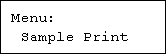
Press the [] or [] key to display [Print One File], and then press the [ Enter] key
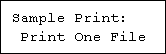
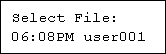
A list of Sample Print files stored in the printer appears.
Press the [] or [] key to display the file you want to print, and then press the [ Enter] key.
Enter the number of sets you want to print using the [] or [] keys, and then press the [ Enter] key.
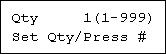
You can enter up to 999 sets.
Press the [Escape] key 1-4 times.
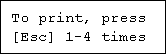
The initial screen appears.
Printing all Sample Print files
Press the [Menu] key.
The [Menu] screen appears.
Press the [] or [] key to display [Sample Print], and then press the [ Enter] key.
Press the [] or [] key to display [Print All Files], and then press the [ Enter] key.
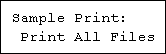
The user ID when the job was stored appears.
Press the [] or [] key to display the user ID for the file you want to print, and then press the [ Enter] key.
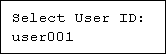
The number of documents selected for printing is displayed. Check the number, and if it is correct, press the [ Enter] key.
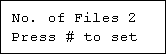
Enter the number of sets you want to print using the [] or [] keys, and then press the [ Enter] key.
You can enter up to 999 sets.
 Press the [Escape] key 1-4 times.
The initial screen appears.

When printing finishes, the stored file is deleted.
To stop printing after printing has started, press the [JobReset] key. The file will be deleted.
If there is a print job outstanding, this is printed before the sample print job.


Deleting a selected Sample Print file only
Press the [Menu] key.
The [Menu] screen appears.
Press the [] or [] key to display [Sample Print], and then press the [ Enter] key.
Press the [] or [] key to display [Delete One File], and then press the [ Enter] key.
The file name and the time when the job was stored appear.
Press the [] or [] key to display the file you want to delete, and then press the [ Enter] key.
To cancel deleting a Sample Print file, press the [Escape] key.
Check the file you want to delete is displayed, and then press the [ Enter] key.
The “Deleted” message appears. Then the file selection screen reappears.
Press the [Menu] key.
The initial screen appears.
Deleting all Sample Print files
Press the [Menu] key.
The [Menu] screen appears.
Press the [] or [] key to display [Sample Print], and then press the [ Enter] key.
Press the [] or [] key to display [Del. All Files], and then press the [ Enter] key.
The user ID when the job was stored appear.
Press the [] or [] key to display the user ID for the file you want to delete, and then press the [ Enter] key.
To cancel deleting a Sample Print file, press the [Escape] key.
The number of documents selected for deletion is displayed. Check the number, and if it is correct, press the [ Enter] key.
The “Deleted” message appears. Then the file selection screen reappears.
Press the [Menu] key.
The initial screen appears.

