




Checking the Error Log
If files could not be stored due to printing errors, identify the cause of the errors by checking the error log on the control panel.
 Press the [Menu] key.
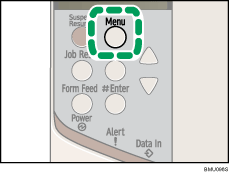
The [Menu] screen appears.
 Press the [
 ] or [
 ] key to display the print type you want to check, and then press the [
 Enter] key.
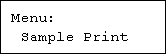
 Press the [] or [] key to display [Error File(s)], and then press the [ Enter] key.
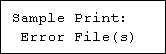
 Press the [] or [] key to check the log.

Press the [Menu] key until the initial screen appears after checking the log.
To print files that appear in the error log, resend them after stored files have been printed or deleted.

