




Printing a Sample Print file
The following procedure describes how to print a Sample Print file with the PCL 6/5e, RPCS or PostScript 3 printer driver.

Applications with their own drivers, such as PageMaker, do not support this function.
Sending a Sample Print file
 From an application, select a command to print.
The Print dialog box appears.
 Select the printer you want to use in the Name list, and then click [Properties].
The printer properties dialog box appears.
 In the [Job type:] box, click [Sample Print].
When printing with the PostScript 3 printer driver, click [Sample Print] in the [Job Type:] box on the [Job Log] tab.
 Click [Details...], and then enter a user ID in the [User ID:] box.
This is used to identify the user. The user ID can be entered using up to eight alphanumeric (a-z, A-Z, 0-9) characters.
 Execute a command to print.
Make sure to set more than two copies.
The Sample Print job is sent to the printer, and the first set is printed.
Printing a selected Sample Print file only
Press the [Menu] key.
The [Menu] screen appears.
Press the [ ] or [
 ] key to display [Sample Print], and then press the [
 Enter] key.
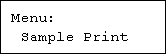
Press the [] or [] key to display [Print One File], and then press the [ Enter] key
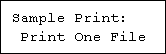
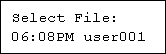
A list of Sample Print files stored in the printer appears.
Press the [] or [] key to display the file you want to print, and then press the [ Enter] key.
Enter the number of sets you want to print using the [] or [] keys, and then press the [ Enter] key.
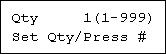
You can enter up to 999 sets.
 Press the [Escape] key 1-4 times.
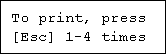
The initial screen appears.
Printing all Sample Print files
Press the [Menu] key.
The [Menu] screen appears.
Press the [] or [] key to display [Sample Print], and then press the [ Enter] key.
Press the [] or [] key to display [Print All Files], and then press the [ Enter] key.
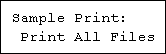
The user ID when the job was stored appears.
Press the [] or [] key to display the user ID for the file you want to print, and then press the [ Enter] key.
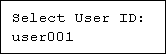
The number of documents selected for printing is displayed. Check the number, and if it is correct, press the [ Enter] key.
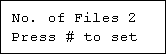
Enter the number of sets you want to print using the [] or [] keys, and then press the [ Enter] key.
You can enter up to 999 sets.
 Press the [Escape] key 1-4 times.
The initial screen appears.

When multiple files are selected without setting a quantity, one set less than the minimum number of all settings is applied. If the least number of settings is one set, all selected files will be printed at one set.
When the number of set quantity is changed, the changed quantity is applied to all selected files.
When printing is completed, the stored file will be deleted.
To stop printing after printing has started, press the [Job Reset] key. The file will be deleted.

