




Specifying standard size paper for the Bypass Tray
This describes how to load standard size paper into the Bypass Tray.
 Set the paper size using the control panel. Press the [Menu] key.
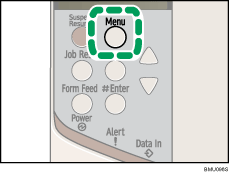
The [Menu] screen appears.
 Press the [
 ] or [
 ] key to display [Paper Input], and then press the [
 Enter] key.

 Press the [] or [] key to display [Bypass Size], and then press the [ Enter] key.
 Press the [] or [] key to select the paper size you want to set, and then press the [ Enter] key.

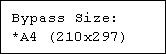

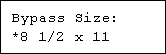
 Press the [Menu] key.
The initial screen appears.

To load thick paper, OHP transparencies, or envelopes, make settings for thick paper, envelope, or OHP transparencies using both the control panel and printer driver.
The number of pages that can be loaded in the Bypass Tray differs depending on paper type. Make sure paper is not stacked above the paper guides inside the Bypass Tray.

