












 Manuals
 Contents
 Previous
 Next
Next


| | | |
| |||
| |||
| | | |
| ManualsContentsPreviousNext | | |
The Document Server enables you to store documents being read with the copy feature on the hard disk of this machine. Thus you can print them later applying necessary conditions.

Machine failure can result in data loss. Important data stored on the hard disk should be backed up. The manufacturer shall not be responsible for any damage that might result from the loss of data.
Press [Store File].

Enter a file name, user name, or password if necessary.
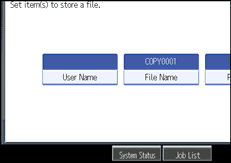
Press [OK].
Make the scanning settings for the original.
Adjust the original guides to the width of the original, and then place the original face down.
The original feeds into the machine automatically, and copying starts. The scanned data is also stored in the memory.

To stop scanning, press the [Clear/Stop] key. To resume a paused scanning job, press [Continue] in the confirmation display. To delete scanned images and cancel the job, press [Stop].
Press the [ ] key after all the originals have been scanned.
Data stored in the Document Server is set to be deleted after three days by the factory default. You can specify the period after which the stored data is deleted automatically. For details about changing settings, see "Administrator Tools", General Settings Guide.
To check if the document has been stored, press the [Document Server] key.
If you want to store another document, do so after copying is complete.
For details about the Document Server, see "Using the Document Server".
For details about printing stored documents, see "Printing a Stored Document".
For details about setting user name, file name, and password, see "Storing Data".
Depending on the security setting, [Access Privileges] may appear instead of [User Name]. For details about specifying [Access Privileges], consult the administrator.
 |
 | Copyright (C) 2008 |

