




Color Balance
Adjusts the overall color tone when the copy is reddish or bluish.
 Press the [
 ] key.
If [Auto Paper Select] is selected, proceed to step 3.
 Select [Color/Quality] using [
 ] or [
 ], and then press the [OK] key.
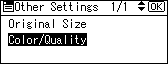
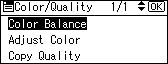
 Select [Color Balance] using [] or [], and then press the [OK] key.
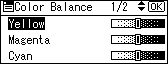
 Select the color you want to adjust using [] or [], and then press the [OK] key.
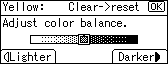
 Adjust the color balance by pressing [Lighter] or [Darker], and then press the [OK] key.
 Press the [Escape] key twice.

When you press the [Clear/Stop] key in step 5, the entire color settings are canceled and the initial settings are restored.
The adjusted settings will be deleted and the initial values will be reset, when Auto Clear has been performed, when the [Clear Modes] key has been pressed or when the power has been turned off.
For explanations about and examples of what you can do with the color adjustment function, see “Available Color Functions”.


