




PictBridge Printing
The following describes how to connect the printer to a digital camera.

This function requires the Camera direct print card.
The Camera direct print card is supplied with a hook onto which you can hang the cable.
Make sure your digital camera supports PictBridge.
Use the USB cable bundled to your digital camera.
Do not disconnect the USB cable while data is being sent. If you do, printing will fail.
 Confirm that the printer and digital camera are turned on.
 Attach the hook on the back of the printer near the USB connection slot.
Attach the hook where it will not interfere with printer operation and access.
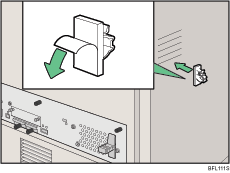
 Check the printer and the digital camera are both switched on.
 Connect the digital camera to the printer.
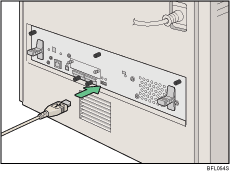
 Secure the USB cable using the hook.
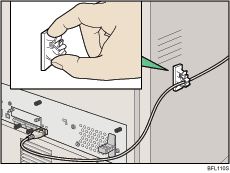
 Connect the other connector of the USB cable to the digital camera.
 On your digital camera, select the images you want to print, and specify the printing conditions.
The machine receives settings from the digital camera and starts printing.

Since printing conditions are specified on the digital camera, specifiable meters depend on the particular digital camera. For details, see your digital camera's manual.
Some digital cameras require settings for manual PictBridge operation. For details, see your digital camera's manual.

