




Deleting Stored Print Files
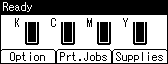
 Press [Prt.Jobs].
 Press the [
 ] or [
 ] key to select [Stored Print Jobs], and then press [Job List].
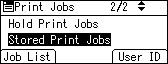
A list of Stored Print files stored in the printer appears.
Depending on the security settings, certain print jobs may not be displayed.
 Press the [] or [] key to select the file you want to delete, and then press [Delete].
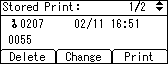
The delete confirmation screen will appear.
If you set the password in the printer driver, enter the password to delete.
If you forget your password, ask your network administrator for help.
 Press [Delete].
The selected file is deleted.
If you do not want to delete the file, press [Cancel].

