












 Manuals
 Contents
 Previous
 Next
Next


| | | |
| |||
| |||
| | | |
| ManualsContentsPreviousNext | | |
In the case of using a WEP key on a network, activate the WEP setting to be used for communication along with WEP.

When activating the WEP Setting, you must enter the WEP key.
Press the [Menu] key.
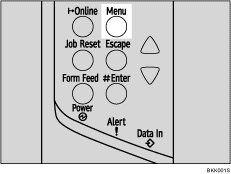
The [Menu] screen appears.
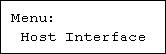
Press the [ ] or [
 ] key to display [Host Interface], and then press the [
 Enter] key.
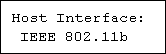
Press the [] or [] key to display [IEEE 802.11b], and then press the [ Enter] key.
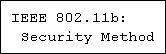
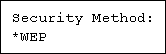
Press the [] or [] key to display [Security Method], and then press the [ Enter] key.
Press the [] or [] key to display [WEP], and then press the [ Enter] key.
When activating the WEP Setting, you will need to enter the WEP key. If you have not entered the key, be sure to enter it.
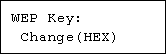
Press the [] or [] key to select [Change (HEX)] or [Change (ASCII)], and then press the [ Enter] key.
Press the [] or [] key to enter the characters, and then press the [ Enter] key.
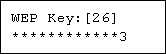
When entering a character, pressing the [ Enter] key will mask it with an asterisk for security reasons.
When using 64 bit WEP, up to 10 characters can be used for hexadecimal and up to five characters for ASCII. When using 128 bit WEP, up to 26 characters can be used for hexadecimal and up to 13 characters for ASCII.
The number of characters that can be entered is limited to 10 or 26 for hexadecimal and 5 or 13 for ASCII.
For ASCII character strings, each uppercase and lowercase letter is recognized respectively.
Press the [Online] key.
The initial screen appears.
Print a configuration page to confirm the settings made.

In the case of using a WEP key on a network, activate the WEP setting to be used for communication along with WEP.
Confirm the network administrator for the WEP Key to use.

"Printing the Test Page", Quick Installation Guide.
Web Image Monitor Help
 |
 | Copyright (C) 2008 |
