




Adjusting the Image Density
You can adjust the image density using the control panel if the image density is not appropriate.

Extreme settings may create printouts that appear dirty.
Image Density settings should be made from the application or the printer driver whenever possible.
 Press the [Menu] key.
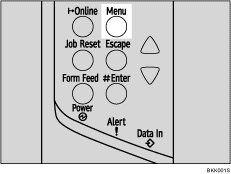
The [Menu] screen appears.
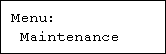
 Press the [
 ] or [
 ] key to display [Maintenance], and then press the [
 Enter] key.
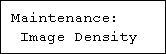
 Press the [] or [] key to display [Image Density], and then press the [ Enter] key.
 Press the [] or [] key to specify the image density, and then press the [ Enter] key.
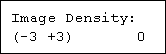
You can specify the image density in the range of -3 to +3.
 Press the [Online] key.
The initial screen appears.

To maintain a darker image under high volume printing conditions, Selecting 3 from the control panel is highly recommended.
You can adjust the image density in seven steps from -3 to +3. Increasing the value makes the printouts darker and decreasing the value makes the printouts lighter.

