




Switching Between Paper Trays
When paper of the same size is loaded in both the Tray1 and the paper feed unit (option), and when [Aut. Tray Select] is set with the printer driver, paper will be fed from the Tray1 when you start printing. To print on paper loaded in the paper feed unit, switch the tray to be used to the paper feed unit using [Tray Priority] in the [Paper Input] Menu.
 Press the [Menu] key.
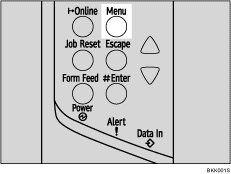
The [Menu] screen appears.
 Press the [
 ] or [
 ] key to display [Paper Input], and then press the [
 Enter] key.
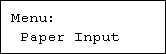
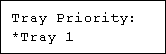
 Press the [] or [] key to display [Tray Priority], and then press the [ Enter] key.
 Press the [] or [] key to select the tray type you want to use, and then press the [ Enter] key.
 Press the [Online] key.
The initial screen appears.

