




Setting a paper size by using the control panel
If you want to use the paper size and feed direction that are not indicated on the paper size dial, set the dial to " ". In this case, you should set the paper size using the control panel. Follow the procedure described below to set the paper size.
 Press the [Menu] key.
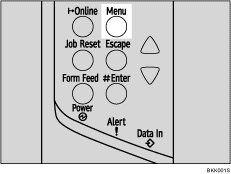
The [Menu] screen appears.
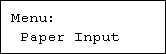
 Press the [
 ] or [
 ] key to display [Paper Input], and then press the [
 Enter] key.
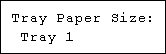
 Press the [] or [] key to display [Tray Paper Size], and then press the [ Enter] key.
 Press the [] or [] key to display the target paper tray, and then press the [ Enter] key.
 Press the [] or [] key to display the loaded paper size, and then press the [ Enter] key.
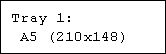
After about two seconds, the display returns to the menu.
 Press the [Online] key.
The initial screen appears.
This completes the setting change.

